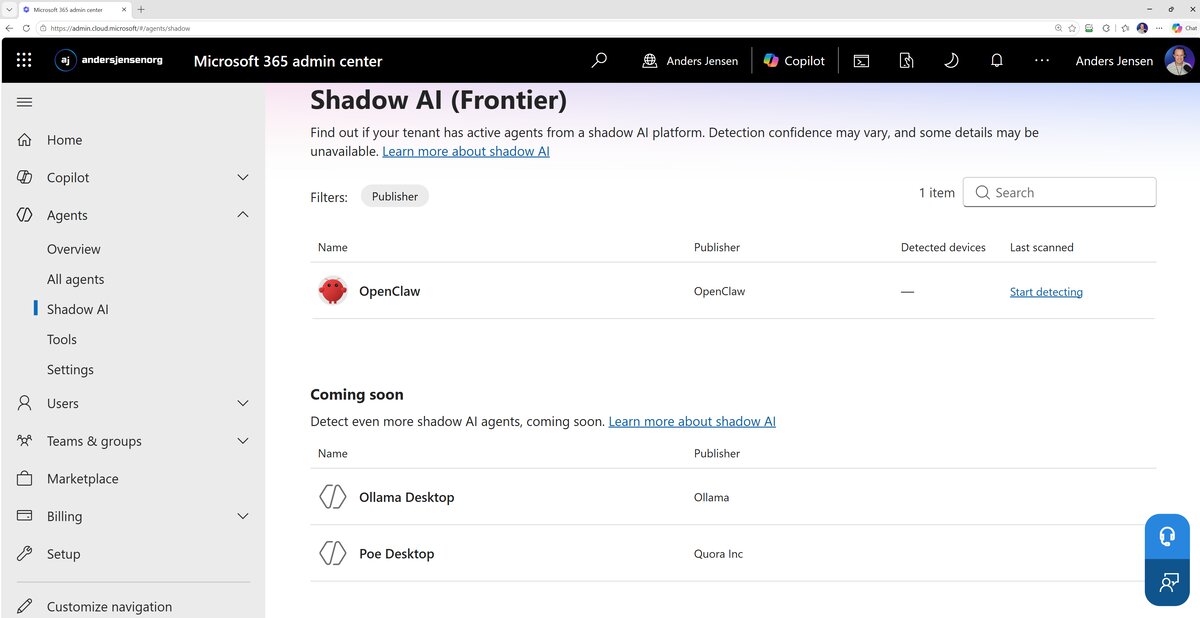
Microsoft has launched a new page in the Microsoft 365 admin center: Shadow AI (Frontier). It scans your organization's Windows devices for local AI agents, meaning AI tools that run directly on employees' computers, typically without the IT department knowing.
It is the first time Microsoft gives IT administrators a built-in tool to see this. And there is good reason to pay attention: In our company, I am both the IT administrator and the guy running the agents. When I opened the page, I was standing on both sides of the hunt.
What is shadow AI?
Shadow AI is Microsoft's term for AI tools that employees use without the IT department's knowledge or approval. Microsoft's own examples include:
- Local AI agents and agentic command line tools (such as OpenClaw and similar)
- MCP servers
- Browser extensions with AI capabilities
The difference between these tools and a chatbot in the browser is access: A local agent can read files, run commands, and work across applications on the device itself. That is exactly why they are so productive, and why IT should care.
Microsoft lists the risks of unmanaged use itself: Data leakage, compliance violations, security vulnerabilities, and lack of auditability.
What can the new Shadow AI page do?
Shadow AI (Frontier) is in public preview, and the functionality is still easy to grasp:
- Detection: The page scans Intune-managed Windows devices for known local AI agents. At the time of writing, OpenClaw is the only agent on the list. Ollama Desktop and Poe Desktop are listed as "coming soon".
- Device list: Once detection is enabled, you can see which devices the agent was found on, with device name, type, operating system, and last Intune scan.
- Blocking: You can block an agent with one click. This creates an Intune policy (for example "A365 - Block OpenClaw") that rolls out to all managed Windows devices. The rollout takes from 15 minutes to 8 hours depending on your Intune setup.
Note the limitation: This only covers Windows devices enrolled in Intune. Private computers and anything outside Intune stay invisible to the page.
How to find the Shadow AI page
- Sign in to the Microsoft 365 admin center.
- Select "Show all" in the left navigation.
- Open "Agents" and select "Shadow AI (Frontier)".
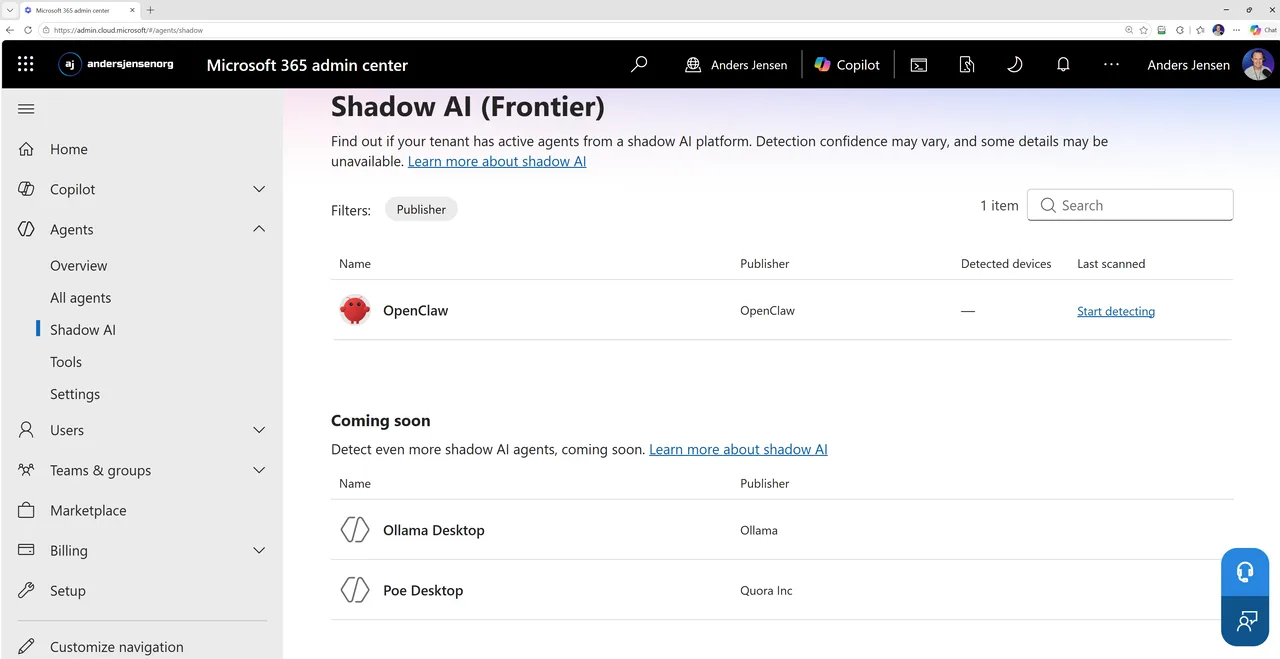
If you cannot see the page, it usually comes down to one of three requirements:
- Your tenant must be opted in to the Frontier preview program.
- You need a Microsoft 365 E3 license.
- You need one of the supported roles, such as Security Administrator, AI Administrator, or Global Reader.
How to enable detection
- Click the agent in the list (for example OpenClaw).
- Select the "Security policies" tab in the details pane.
- Select "Continuously detect managed devices".
- Confirm with "Apply policies".
It can take a while before devices have synced with Intune and the list of detected devices starts to fill.
Pros and cons
We run local AI agents every day, and we manage our own tenant. Seen from both chairs, this is our honest assessment of the feature as it looks right now.
Pros
- Built into the admin center: No third-party tools, no extra license on top of E3.
- A concrete device list instead of guesswork and surveys.
- Blocking is handled by a ready-made Intune policy that you can edit and tighten afterwards.
- The signal it sends: Microsoft takes local agents seriously, and the list of detectable agents is growing.
Cons
- The list is short so far: Only OpenClaw can be detected today.
- Only Intune-managed Windows devices. Mac, mobile, and private computers are blind spots.
- It is a preview feature: Things can change, and Microsoft itself notes that detection confidence may vary.
- The entry requirements (E3, roles, Frontier opt-in) mean smaller organizations may be locked out for now.
- Blocking does not solve the underlying need: A blocked agent often just moves to private hardware, where you see even less.
Our recommendation: Detect first, block last
It is tempting to go straight to blocking. We recommend taking a breath first.
Look at who actually runs these agents: It is often your most productive people. Their agent reads the inbox and drafts the replies, keeps the numbers current, builds the small tools nobody had time for, and runs overnight with a report ready in the morning.
A report of your shadow AI makes it exactly that, no longer hidden: Now you can deal with each risk concretely instead of fearing the unknown. So enable detection, see what shows up, and have the conversation with the people you find. A blocked agent rarely disappears; it just moves to a private computer, and then it is truly out of your sight. The other half of the job sits with your staff: They need to know what they may use, and why.
The governance job is not solved with a block button. But with the new page, you finally have a place to start.
And if the question is about the agents inside Copilot itself, we have gathered the facts for that decision in the article Should You Enable Agents in Microsoft 365 Copilot? When it is time to actually manage them, the admin guide to agent management takes over.
You can find Microsoft's official documentation here: Understand Shadow AI in Microsoft 365 admin center.
News like this about Copilot and Microsoft 365 administration comes up regularly in the LinkedIn group The Copilot Community, an active group for news, problem solving, and best practices.