Advertisement: This article was made in partnership with Granola, who paid to have their product featured. The walkthrough, the judgements and the caveats are my own.
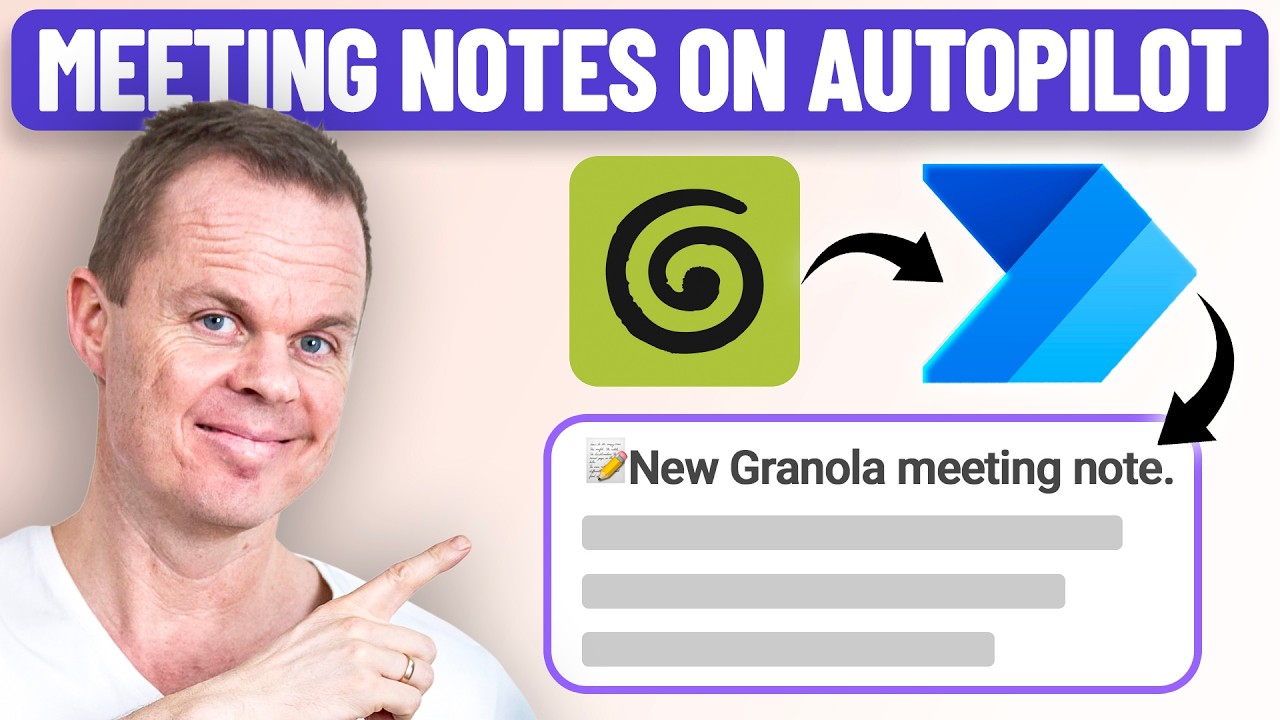
Granola writes a decent summary of your meeting. The problem is that the summary stays inside Granola, and nobody but you opens the app. In this guide you will build a Power Automate flow that pulls the latest note through Granola's API and posts it as a message in Microsoft Teams, with the title, the summary and a link to the full note.
I teach Power Automate for a living, and this is the kind of integration I get asked about most often: Two tools that each work fine on their own, but never talk to each other. Granola's API is small enough that the whole chain can be built in a morning, which makes it a good place to learn how to call someone else's API from a flow.
What you need first
- Granola set up with your Microsoft account: If you are not up and running yet, start with the guide to Granola with Teams and Outlook. This article picks up where that one ends.
- Granola on a Business plan: Only members on the Business plan can create API keys. On a free or personal plan you cannot build this. On Enterprise, your workspace admin also controls which scopes you are allowed to use.
- Power Automate: The HTTP action is premium, so you need a licence that covers it.
- Microsoft Teams: To receive the message.
- Postman (optional): I use it to understand an API before I build against it. You can skip it and go straight to the flow.
Step 1: Get an API key from Granola
- Open the Granola desktop app.
- Click your name in the bottom left corner and choose "Settings".
- Go to "Connectors" and find "Personal API Keys".
- Click "Create new key".
- Choose what access the key should have, then click "Generate API Key".
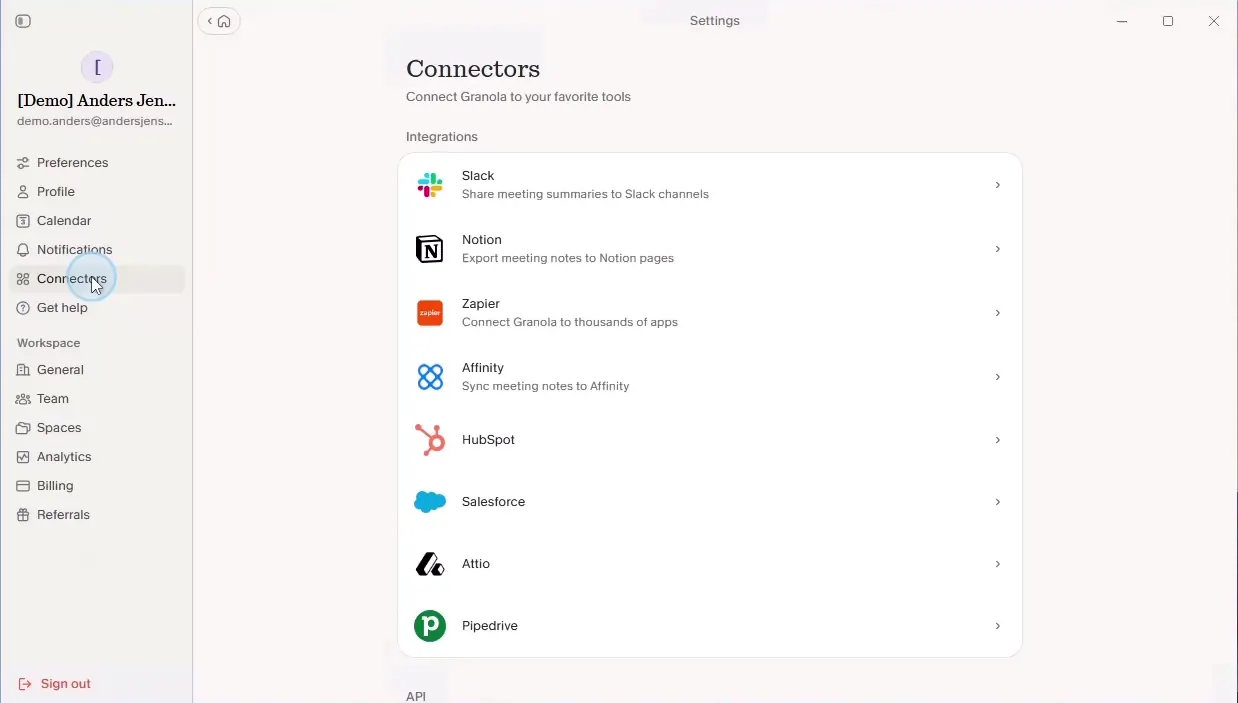
There are two scopes to choose between:
- Personal notes: Notes you own, notes shared directly with you, and notes in private folders you have access to.
- Public notes: Notes everyone in the workspace can see, and notes in the Team space.
Pick the smallest one that does the job. If the flow only needs your own meeting summaries, "Personal notes" is enough.
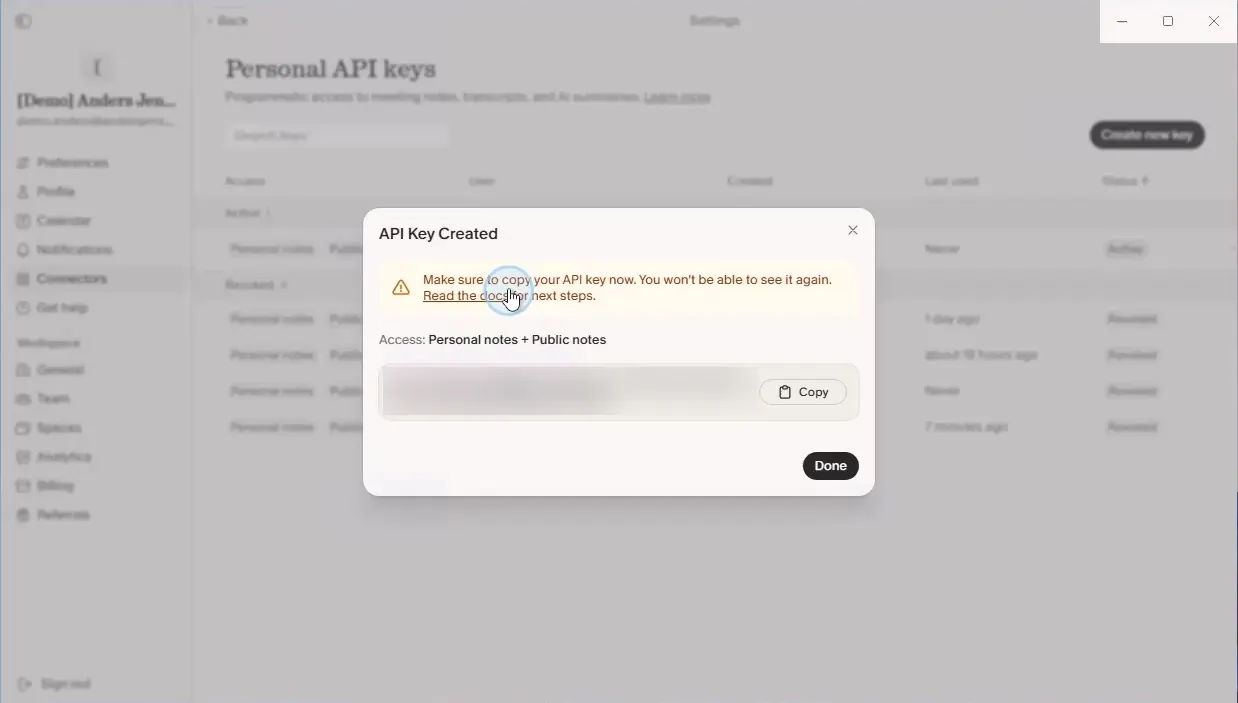
Copy the key immediately. It is shown this one time only, and there is no way to retrieve it afterwards. If you lose it, create a new one and delete the old.
Step 2: Understand the API before you build the flow
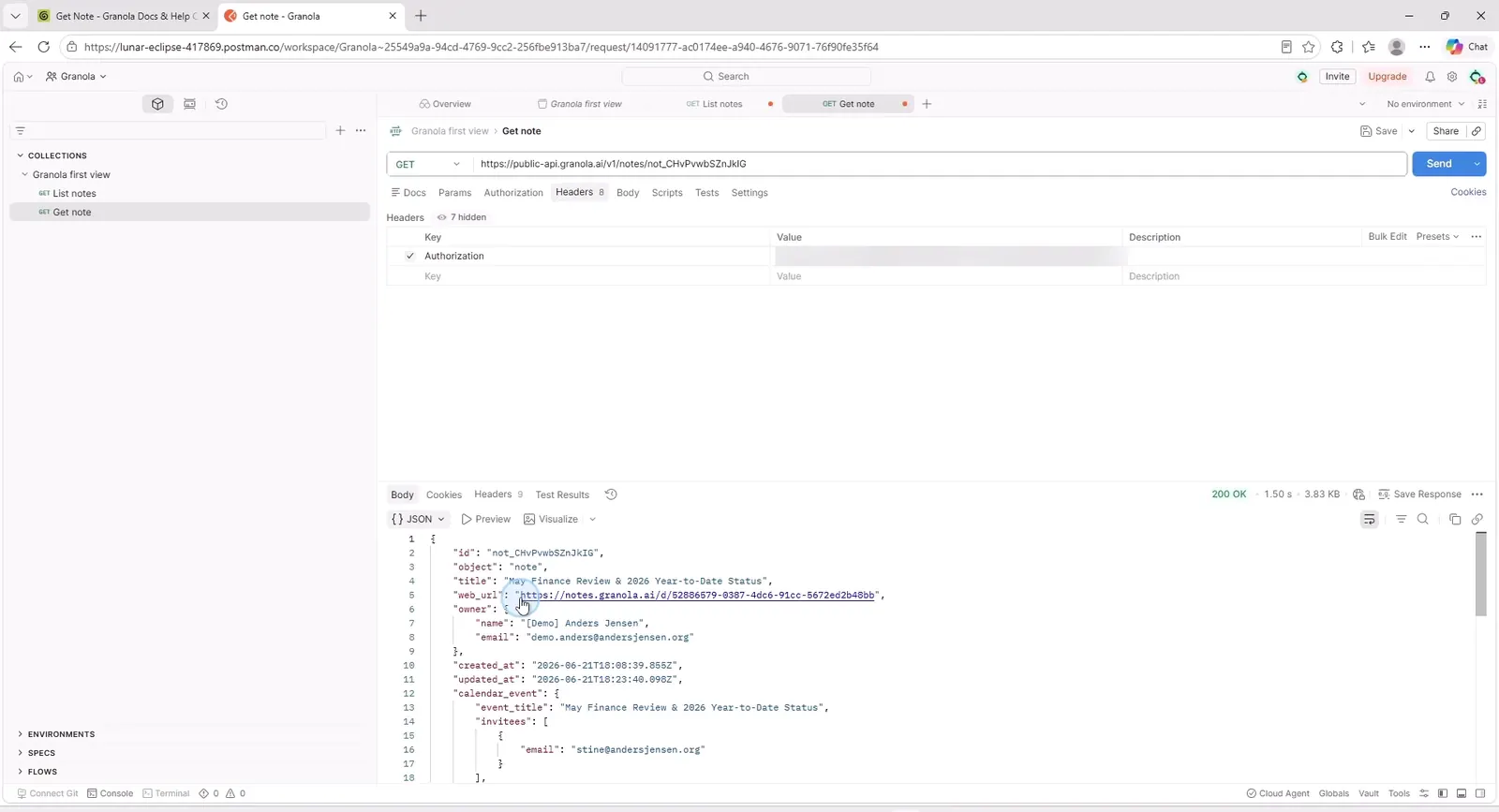
Calling the API by hand takes ten minutes, and those ten minutes save you from debugging two things at once later. Granola's API documentation currently covers three endpoints: List notes, Get note and List folders.
Start with List notes:
- Method: GET
- URL:
https://public-api.granola.ai/v1/notes?page_size=10 - Header:
Authorization: Bearer YOUR_API_KEY
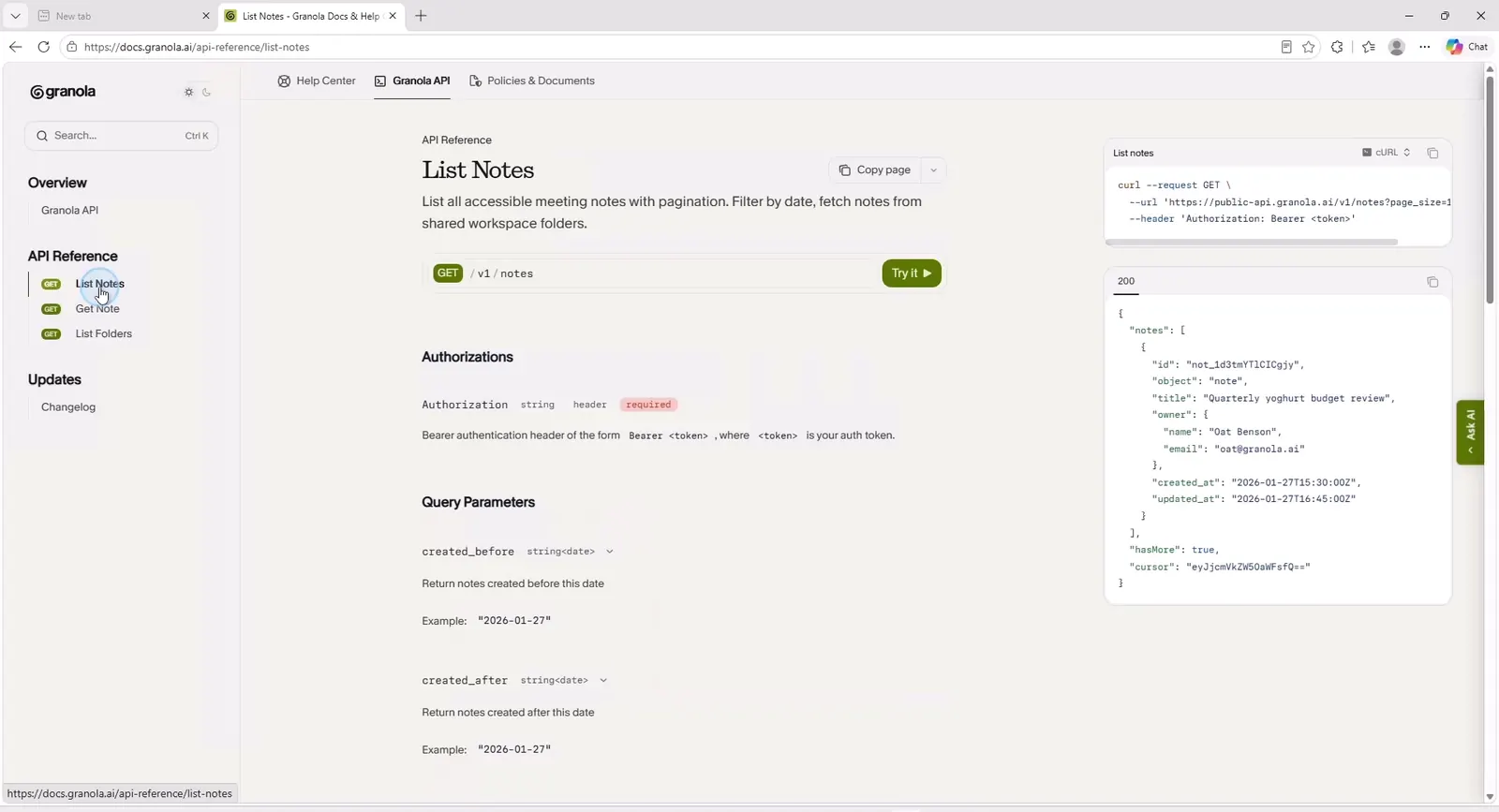
The response is a list of notes, where each note has an id, a title, an owner and timestamps. Note ids start with not_. This is summary data only: The meeting write-up itself is not included here.
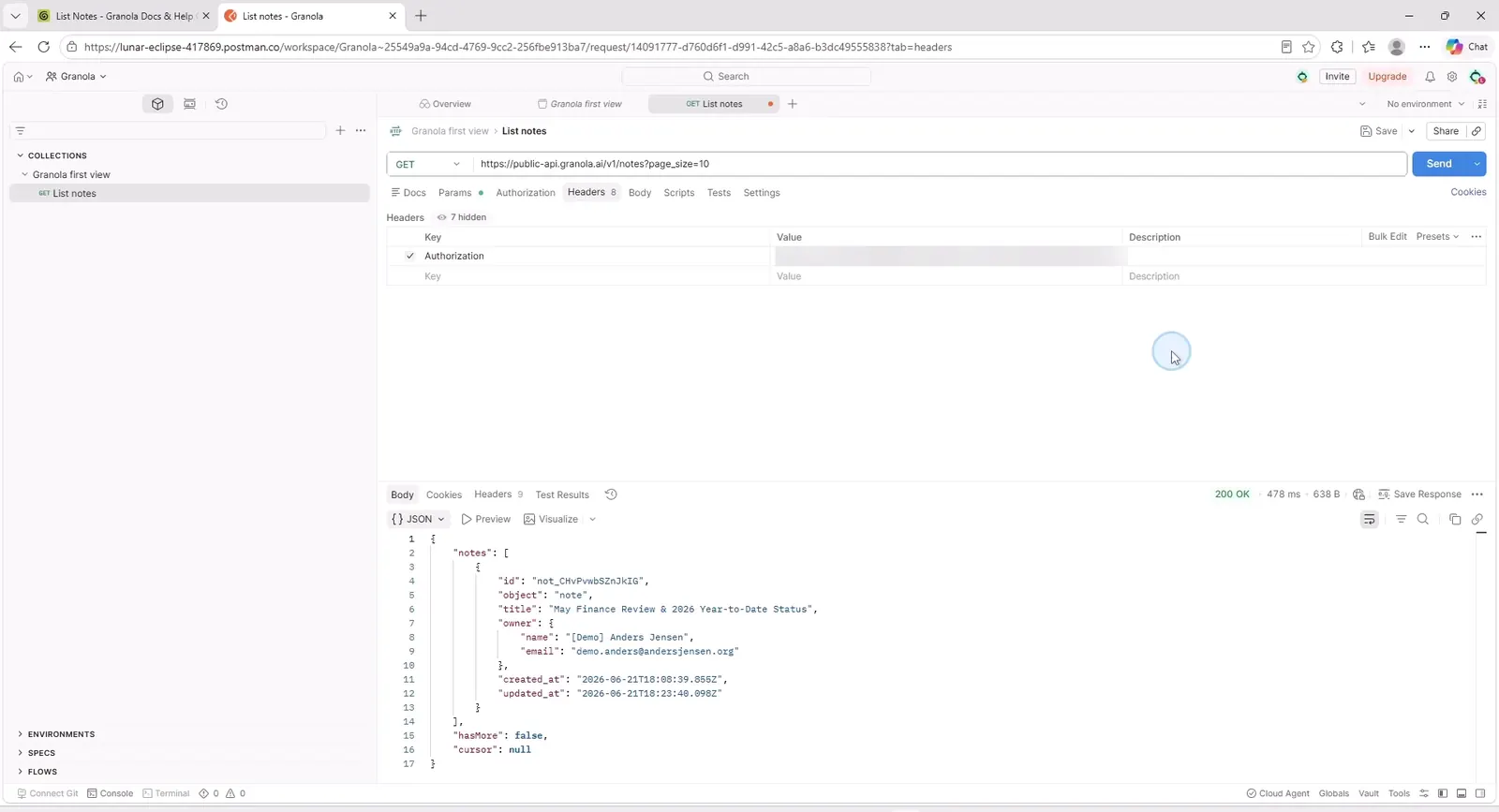
You fetch the write-up with Get note, putting a note id into the URL:
- URL:
https://public-api.granola.ai/v1/notes/{note_id}
This is where the three fields the rest of this guide depends on live:
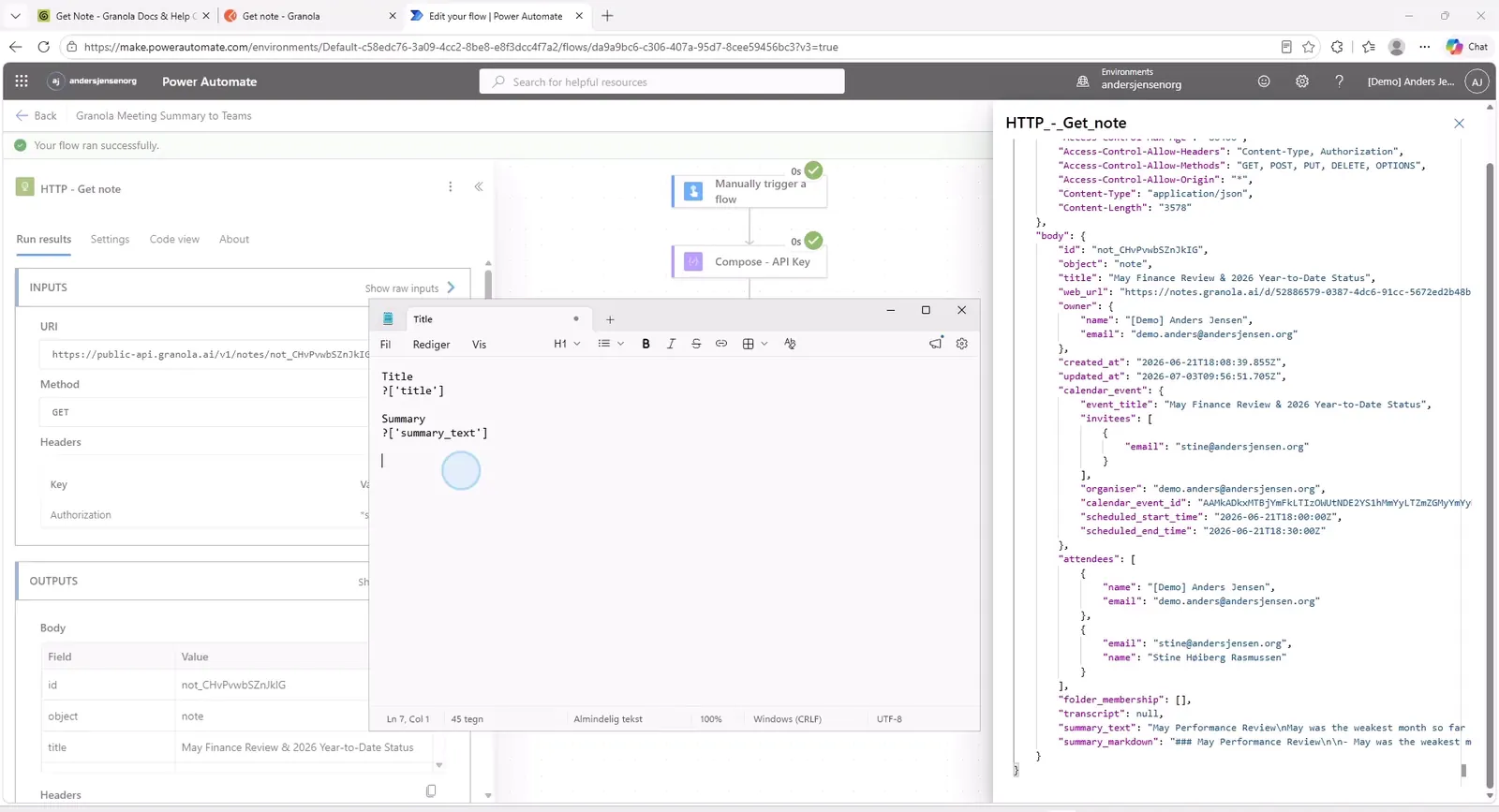
title: The meeting title.summary_text: The summary itself as plain text. There is alsosummary_markdownif you would rather keep the formatting.web_url: A direct link to the note in Granola on the web.
Step 3: Create the flow
- Go to make.powerautomate.com.
- Choose "Create", then "Instant cloud flow".
- Name the flow, for example "Granola Meeting Summary to Teams".
- Pick the "Manually trigger a flow" trigger and click "Create".
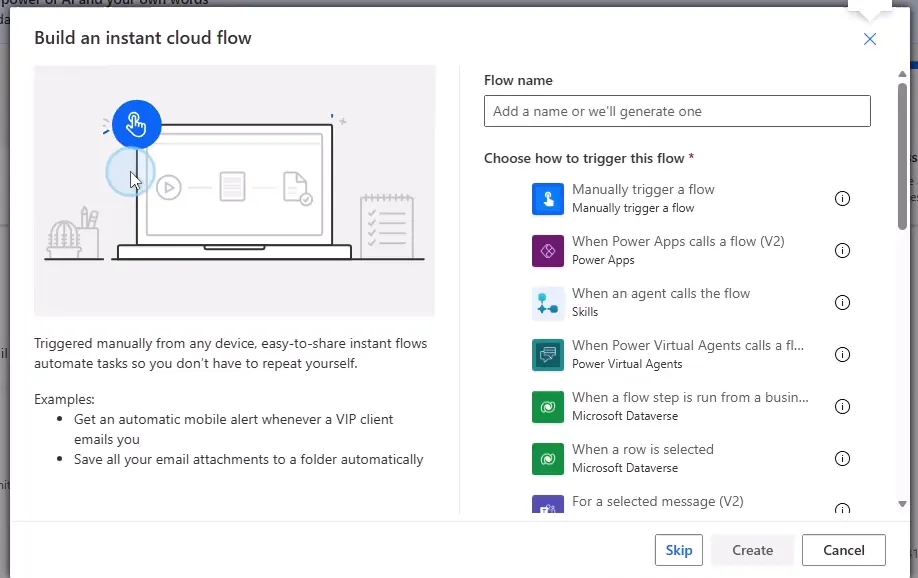
A manual trigger, because you need to be able to press the button while you build. It gets swapped out at the end.
Step 4: Keep the key in one place
Add a Compose action, rename it to "Compose - API Key", and paste the key into Inputs.
The reason is practical: The key is needed in two separate HTTP calls, and when it lives in one place it only has to be changed in one place. Be aware that the key sits in the flow in plain text, and that anyone with edit access can read it. If this is going to run for anyone other than you, the key belongs in Azure Key Vault instead.
Step 5: Fetch the list of notes
- Add an HTTP action and rename it to "HTTP - List notes".
- URI:
https://public-api.granola.ai/v1/notes?page_size=10 - Method: GET
- Under Headers: Key =
Authorization, Value =Bearerfollowed by the output from the Compose action.
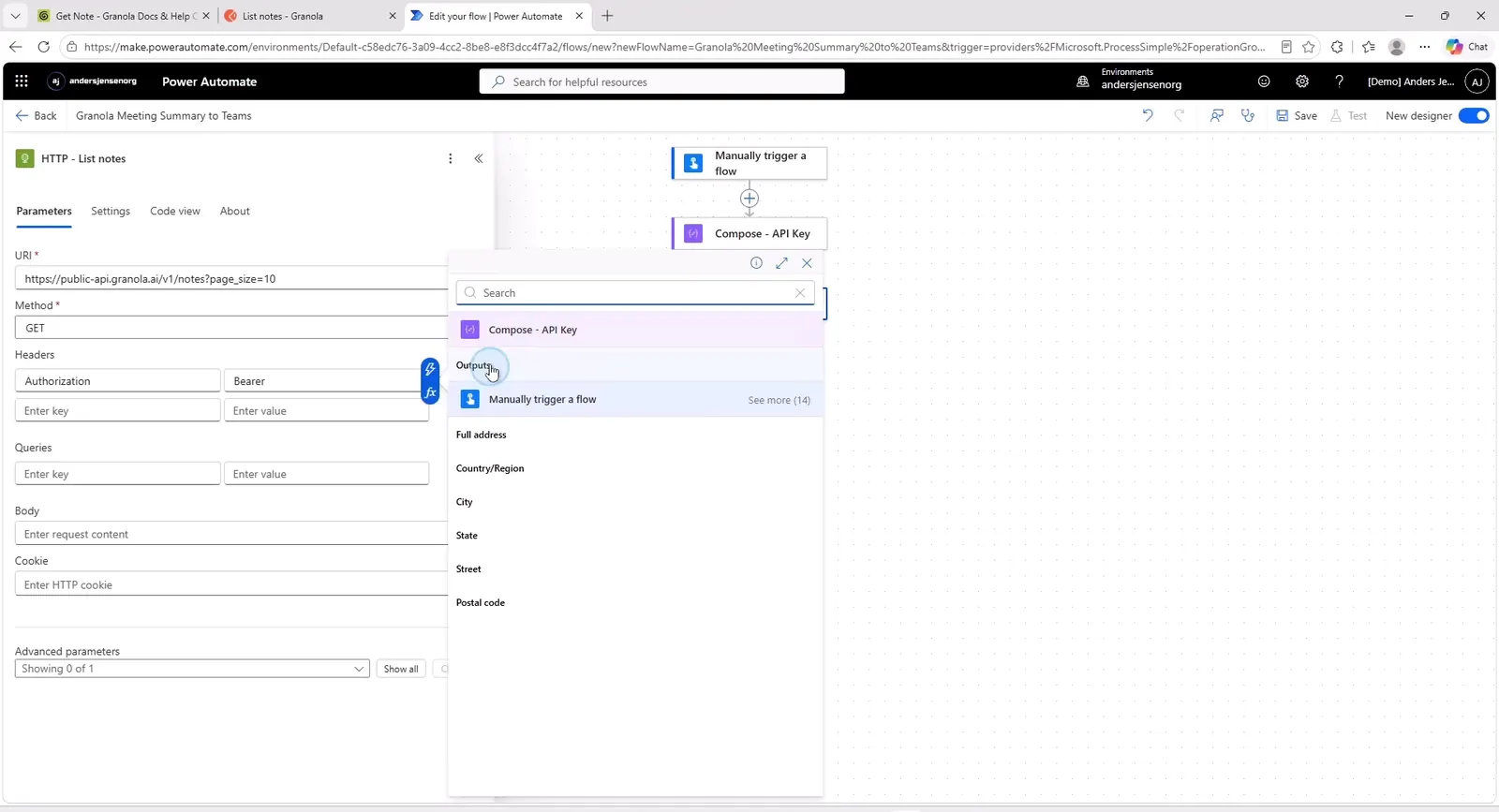
Remember the space after Bearer. It is the single most common cause of a 401 from here.
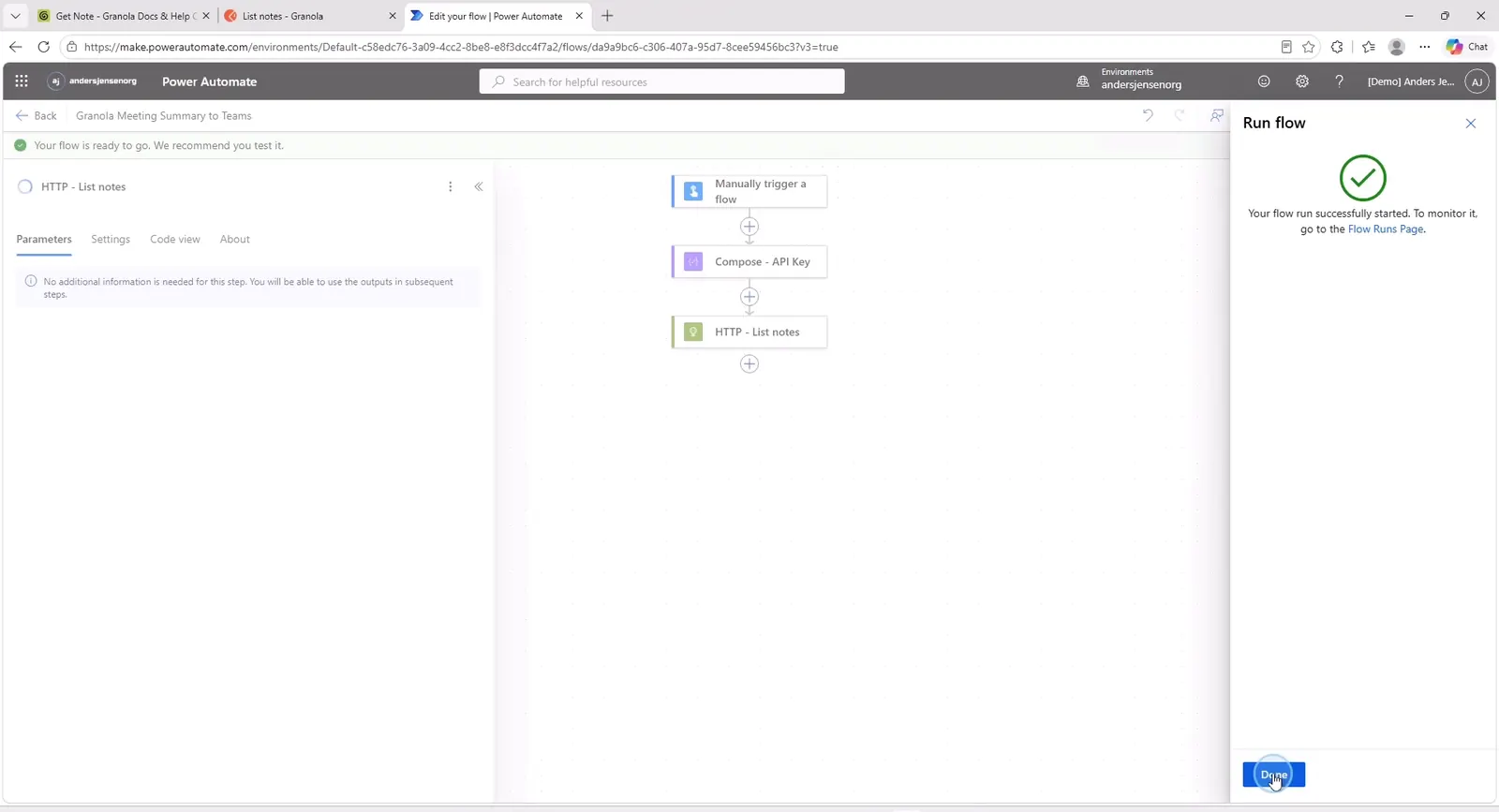
Save and run the flow. Then click the action in the run history and choose "Show raw outputs" so you can see what actually came back.
Step 6: Find the latest note
The response holds ten notes. You want the newest one, which is the first in the list.
- Add a Compose action and rename it to "Compose - Latest note id".
- Put this expression into Inputs:
body('HTTP_-_List_notes')?['notes'][0]?['id']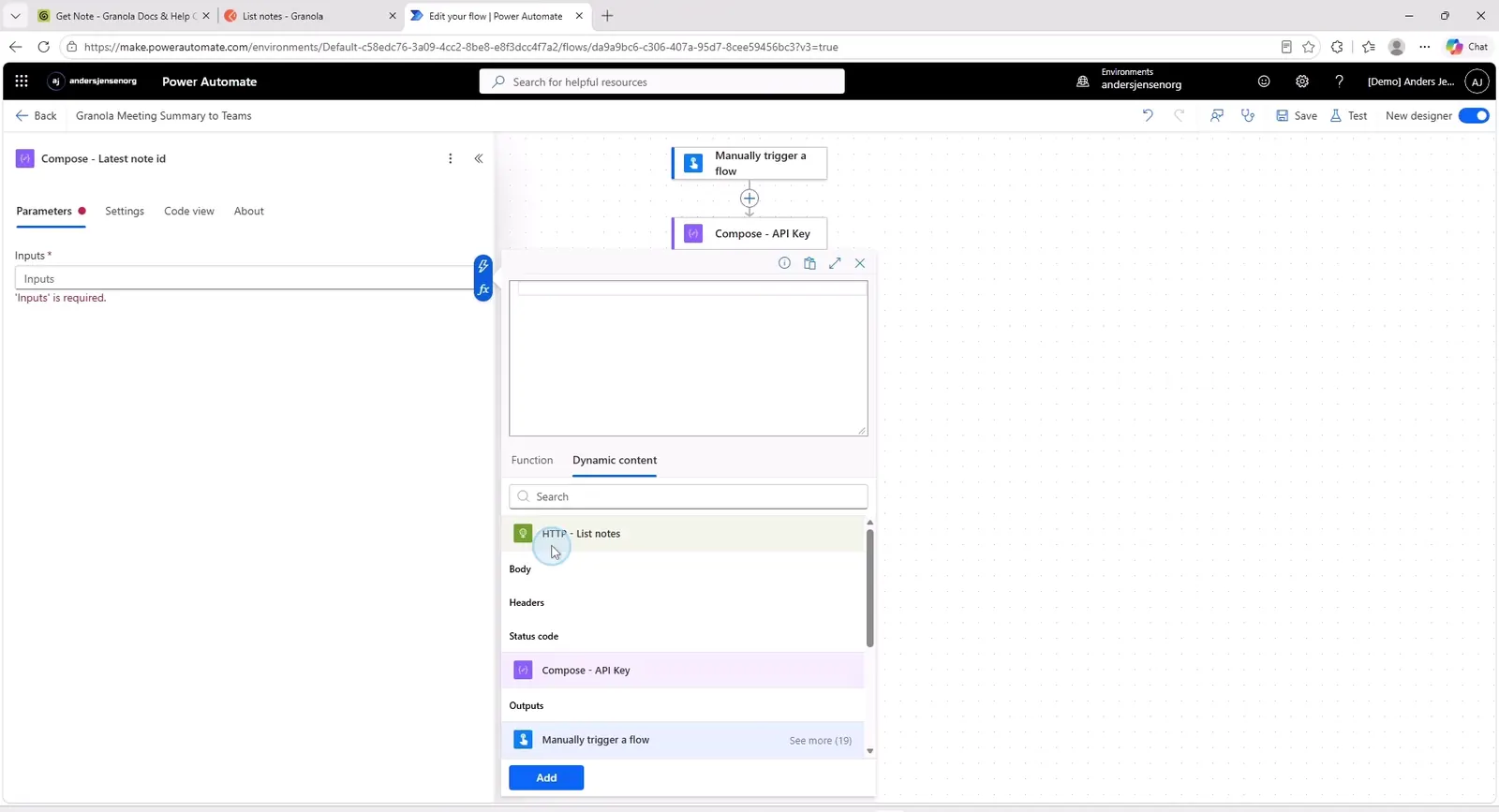
The expression reads like this:
body('HTTP_-_List_notes'): The response from the HTTP action. Spaces in the action name become underscores here, which is worth remembering if you named your actions differently to mine.?['notes']: The list of notes in the response. The question mark stops the flow from failing if the field is missing.[0]: The first element.?['id']: The note id.
Run the flow again and check that the output is now one id and nothing else.
Step 7: Fetch the summary itself
- Add another HTTP action and rename it to "HTTP - Get note".
- URI:
https://public-api.granola.ai/v1/notes/followed by the output from "Compose - Latest note id". - Method: GET
- The same Authorization header as before.
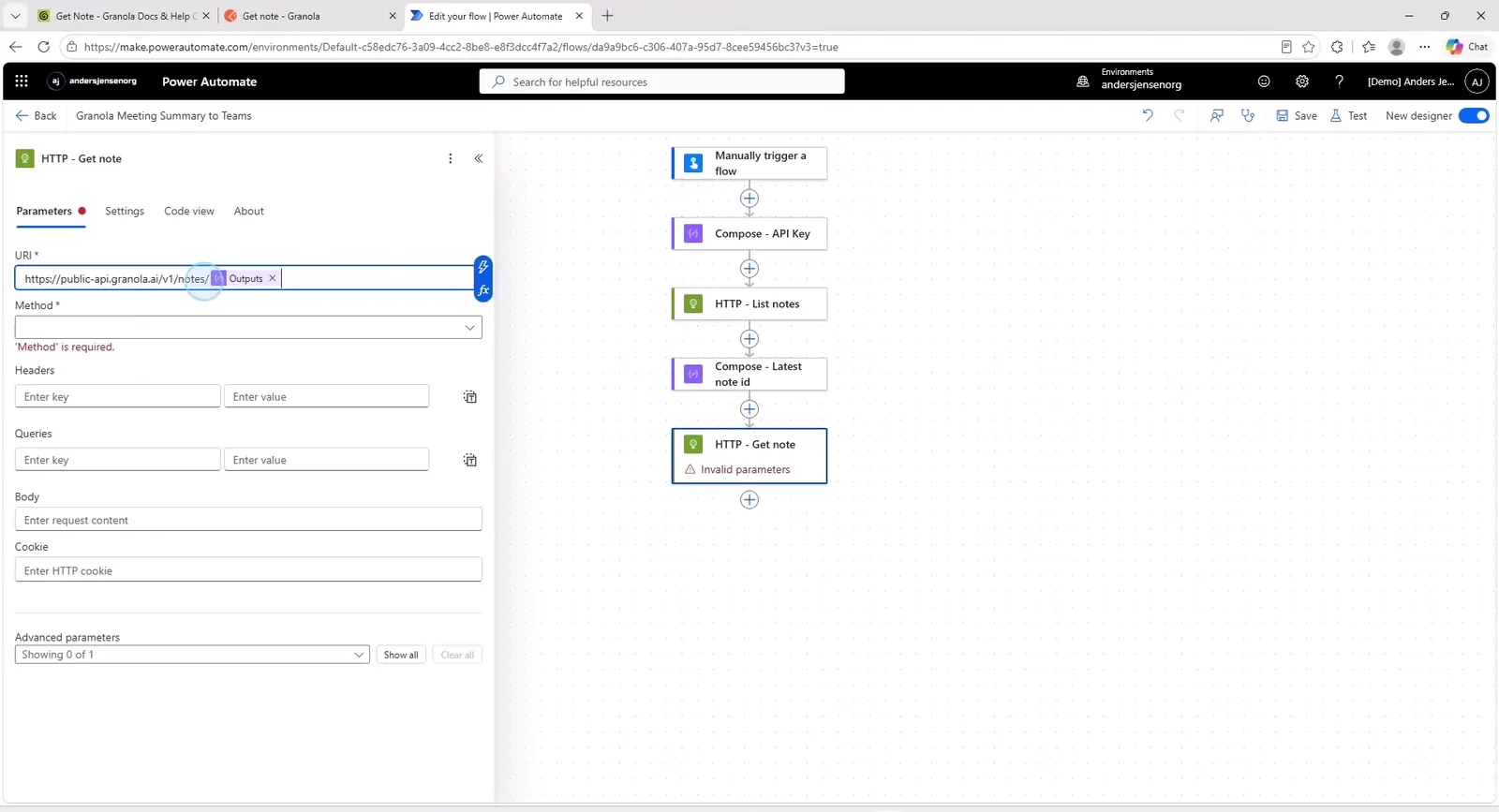
Run the flow and confirm that the response now contains title, summary_text and web_url.
Step 8: Post the message in Teams
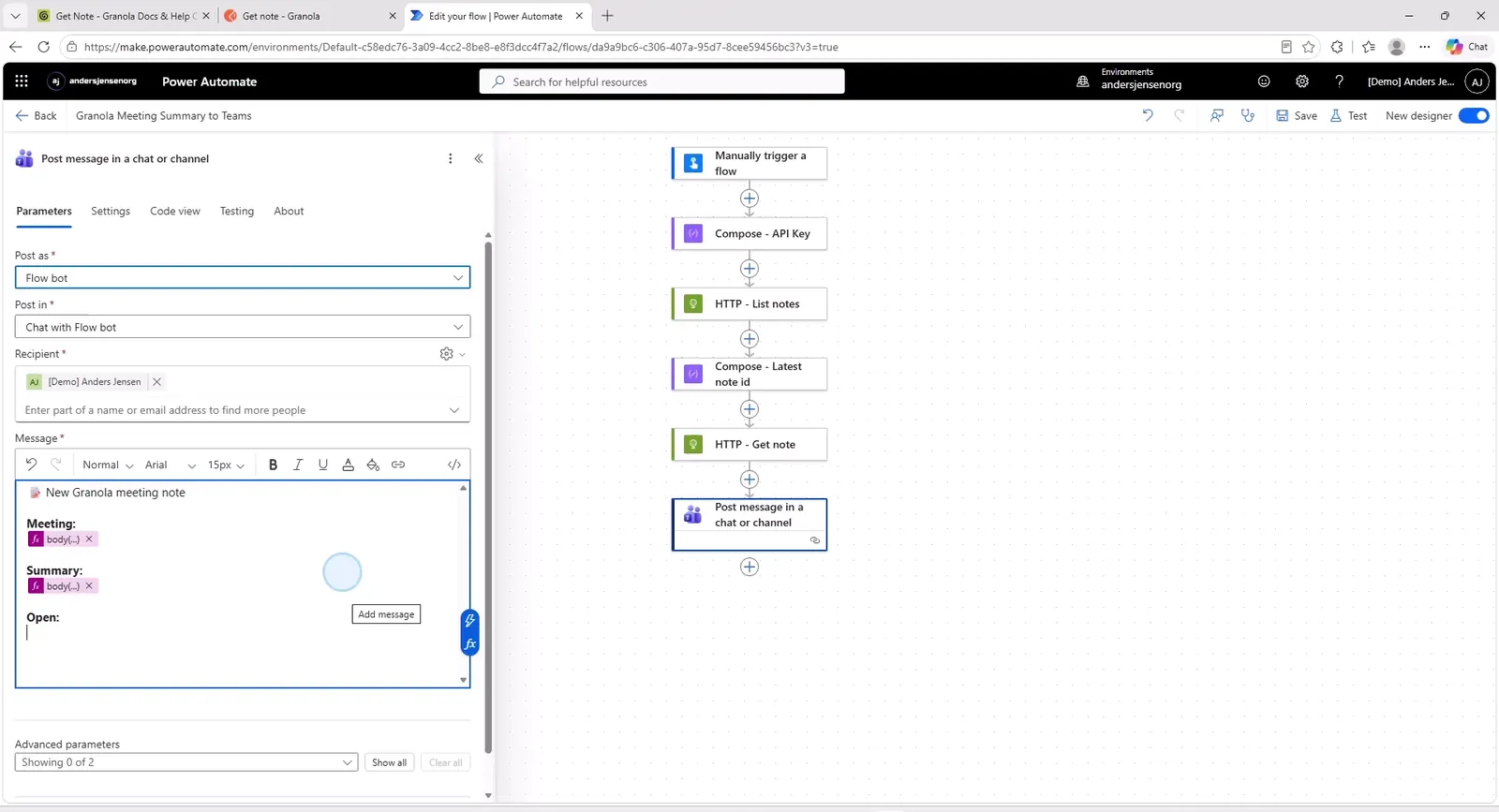
- Add the "Post message in a chat or channel" action from Microsoft Teams.
- Post as: Flow bot
- Post in: Chat with Flow bot
- Recipient: Your own email address
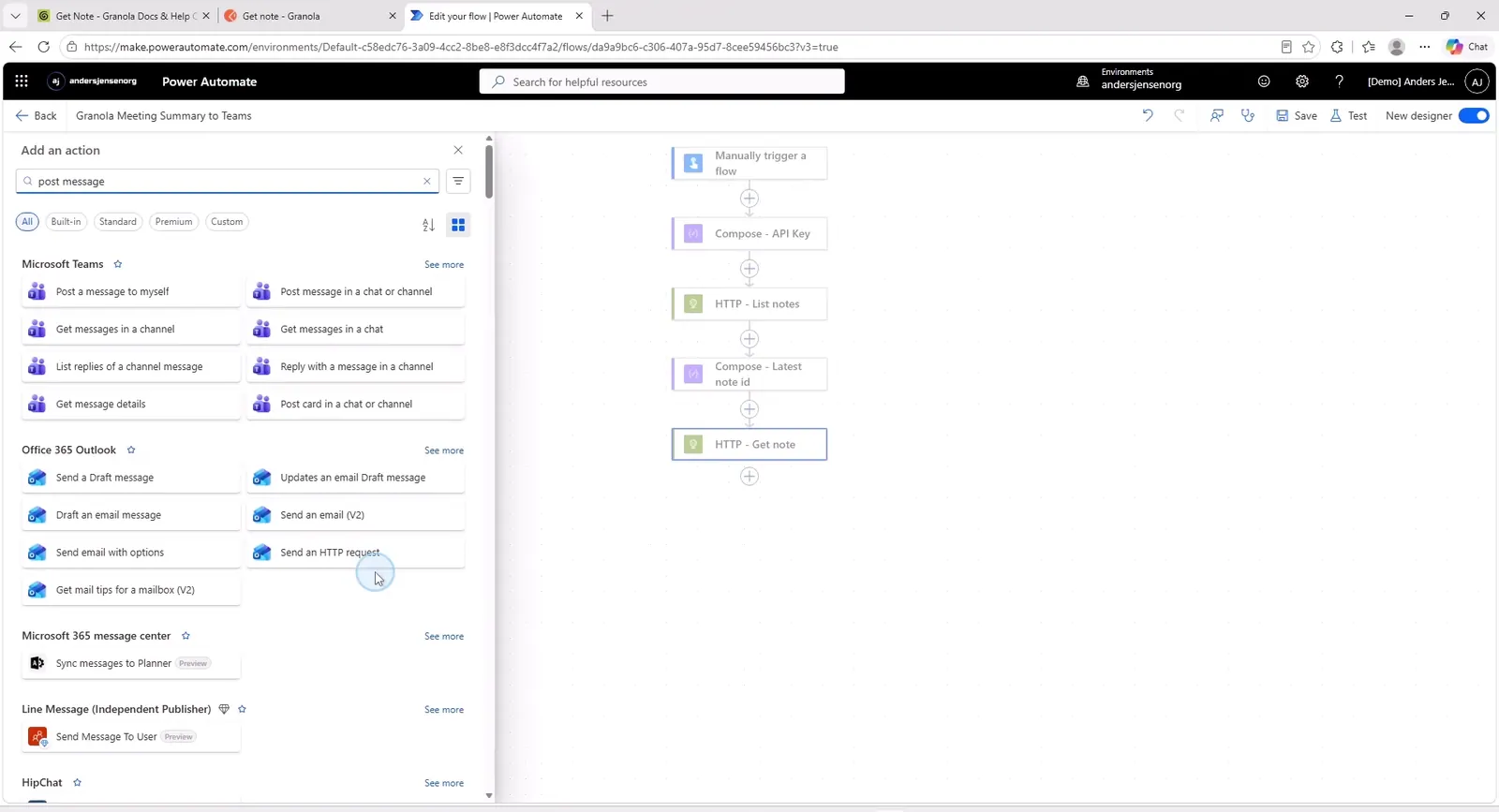
Then build the message from the three fields in Get note: The title, the summary and the link. The link is the step people get stuck on. You cannot simply drop web_url in and expect a clickable link. Instead, type a word, select it, create a link on it, then switch the message field to its HTML view and replace the placeholder address with web_url.
Verify that it works
Run the flow one last time and open Teams. The message from Flow bot should carry the meeting title, the summary and a link that opens the note in Granola.
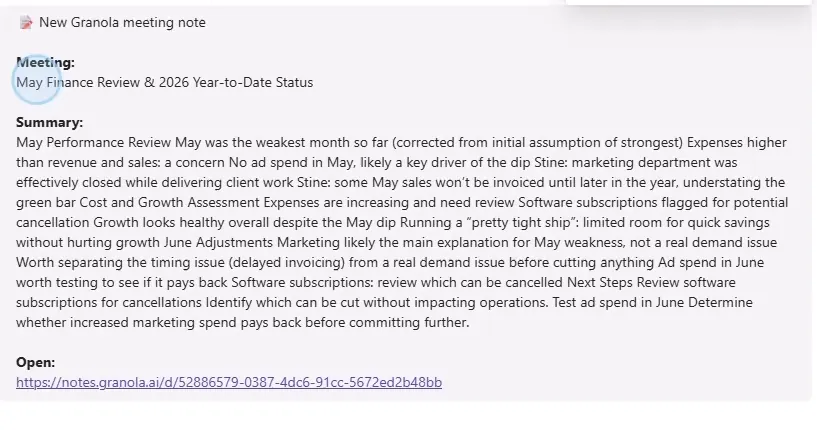
If the link does not work, the fault is almost always in the HTML view from step 8.
Common pitfalls
- 401 from the API: A missing space after
Bearer, or a key that has been deleted. - The key is shown once: There is no way back. Create a new one.
- Rate limits: Granola allows 25 calls over 5 seconds in a burst and 5 calls per second sustained. Above that you get
429 Too Many Requests. A manual flow will never hit it, but it is worth knowing once the flow starts running on a schedule. [0]is only the newest note because the list comes back sorted. The flow trusts that order. If you want certainty, filter withcreated_afterinstead.- Underscores in expressions: Spaces in action names become
_. Rename an action after writing the expression and the expression stops working. - The summary can be long.
summary_texthas no upper limit, and a long meeting makes for a heavy Teams message. Consider trimming the text and letting the link carry the rest.
From demo to something that runs on its own
The flow in this guide is still manual: You press the button and it fetches the latest note. That is deliberate, because it is easier to debug that way.
To make it run on its own, two things are missing. You swap the manual trigger for a schedule, every fifteen minutes for instance. And you store the ids of the notes the flow has already sent in a SharePoint list, so the same note does not get posted again on the next run.
This is the part that is not pretty: The API has no webhook that can tell you when a new note is ready. The flow has to ask at intervals, and then remember what it has already seen. That is extra work, and it is the right way to build it anyway.
Is it worth the effort?
If you are the only person who reads your meeting summaries, the answer is no. Open Granola instead.
It gets interesting the moment the summary needs to reach someone else. A channel the team follows, a project group that needs the decisions, or a system that needs updating. Granola is good at capturing the meeting, and Power Automate is good at moving the result to where the work happens. Teams is simply the first and easiest place to send it. Once the chain is standing, the same approach puts the summary into Planner, into a SharePoint list, or into your CRM.
Granola gives you your first month free with my link, if you want to try the chain on your next meeting.