Advertisement: This article was made in partnership with Granola, who paid to have their product featured. The walkthrough, the judgements and the caveats are my own.
You cannot both take part in a meeting and write proper notes. Either you listen, or you type. Granola is an AI notepad that records in the background and writes the summary afterwards, and it does not join the meeting as an extra participant. In this guide you will set it up with your Microsoft account, connect your Outlook calendar, and run a Teams meeting where the summary writes itself.
I run most of my teaching and my meetings in Teams, and I have tried a fair number of note-taking tools. What keeps me on this one is that no bot walks into the meeting and makes it awkward.
What you need first
- A Microsoft account with Outlook and Teams.
- Granola's desktop app.
That is the whole list. Nothing gets installed in your tenant and IT does not have to approve an app, because Granola runs on your own machine.
Step 1: Install and sign in with Microsoft
- Download Granola's desktop app from granola.ai and run the installer.
- Open Granola.
- Choose "Sign in with Microsoft".
- Sign in with your Microsoft account and approve the permissions Granola asks for.
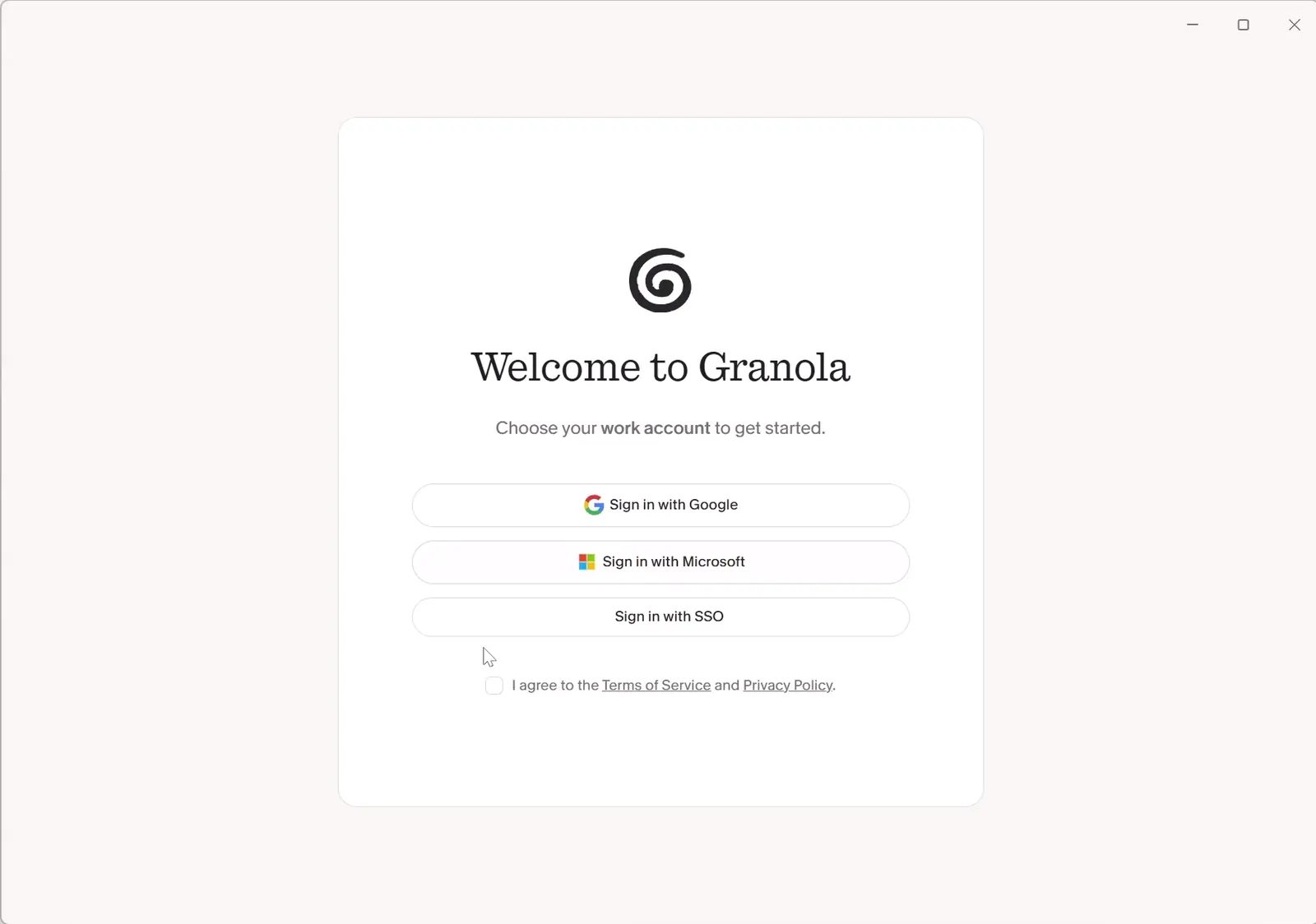
Pick Microsoft over Google or SSO if you work in Microsoft 365. That connects the calendar in the same move, so you never have to hook Outlook up separately.
Step 2: The calendar syncs itself
Granola's home screen has a section called "Coming up". Your upcoming meetings sit there, pulled straight from Outlook.
Try it: Create a meeting in your Outlook calendar and switch back to Granola.
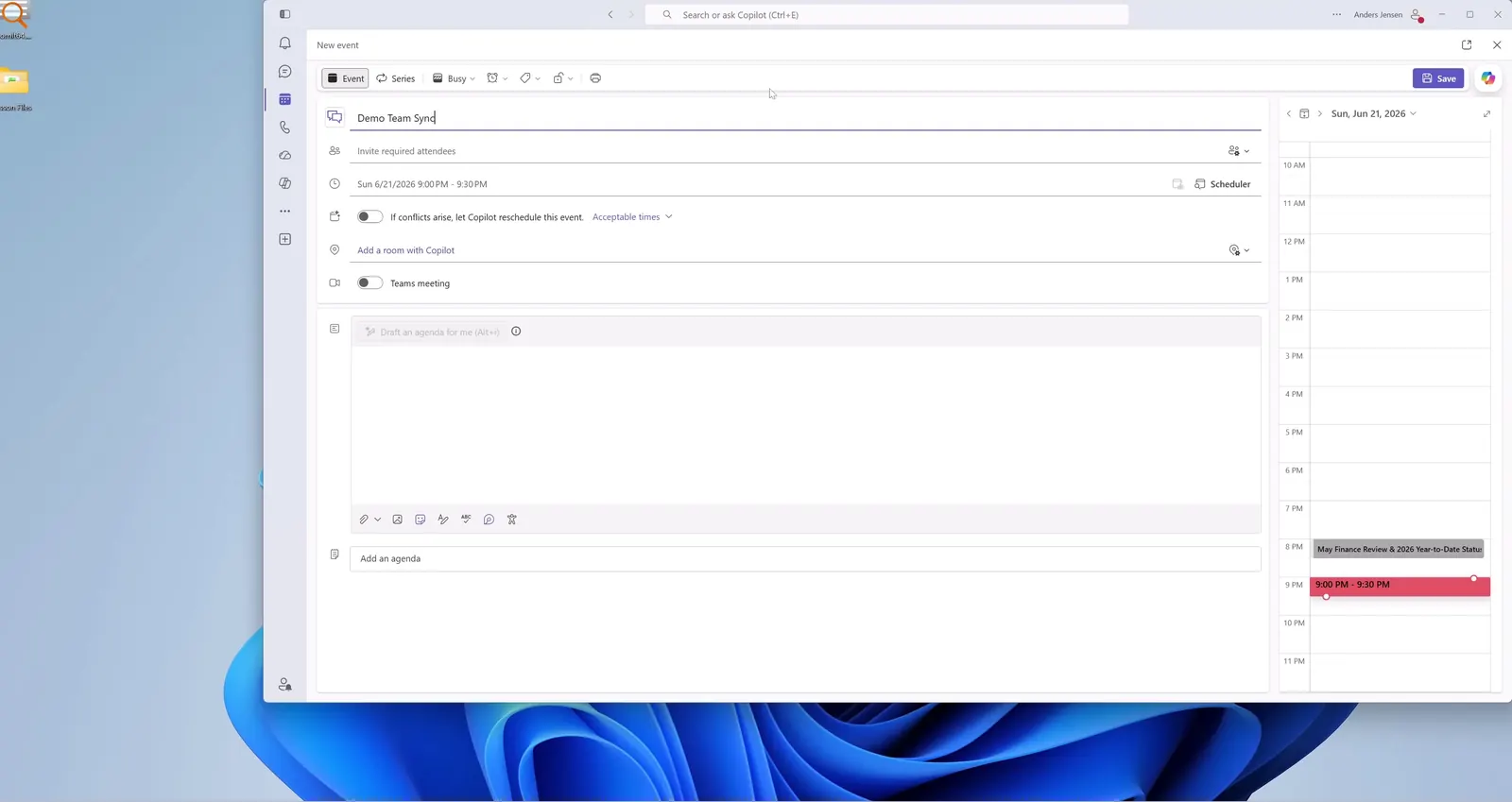
The meeting is already there. Below "Coming up" sits your meeting history, so earlier summaries and action items are one click away.
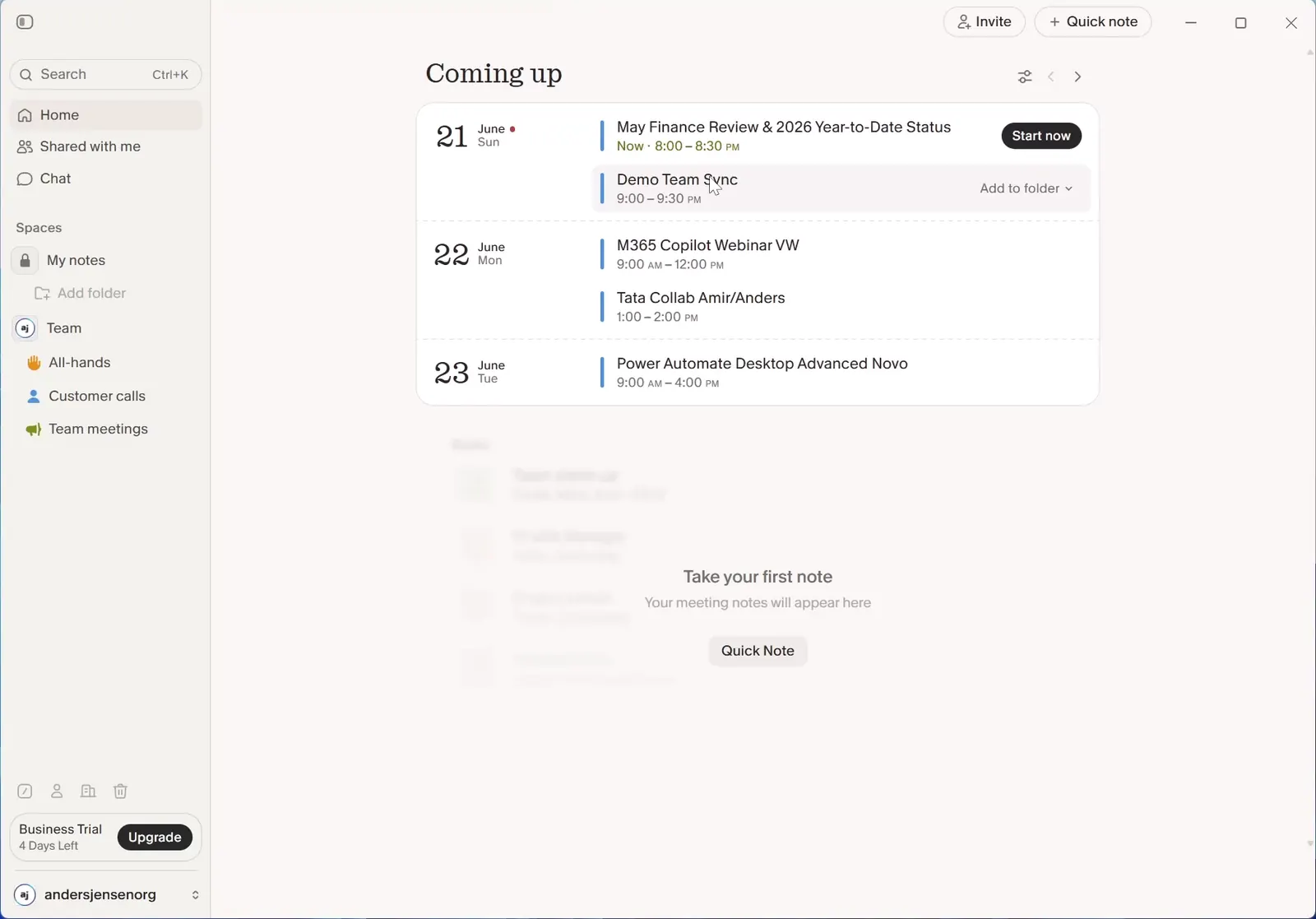
This is the part that makes the integration more than a detail. You do not have to start anything before a meeting. Granola already knows it is there.
Step 3: Prepare the meeting inside the note
Click the meeting in "Coming up" and write your preparation straight into the note: What you want out of the meeting, the numbers you want to address, and the questions you want to remember to ask.
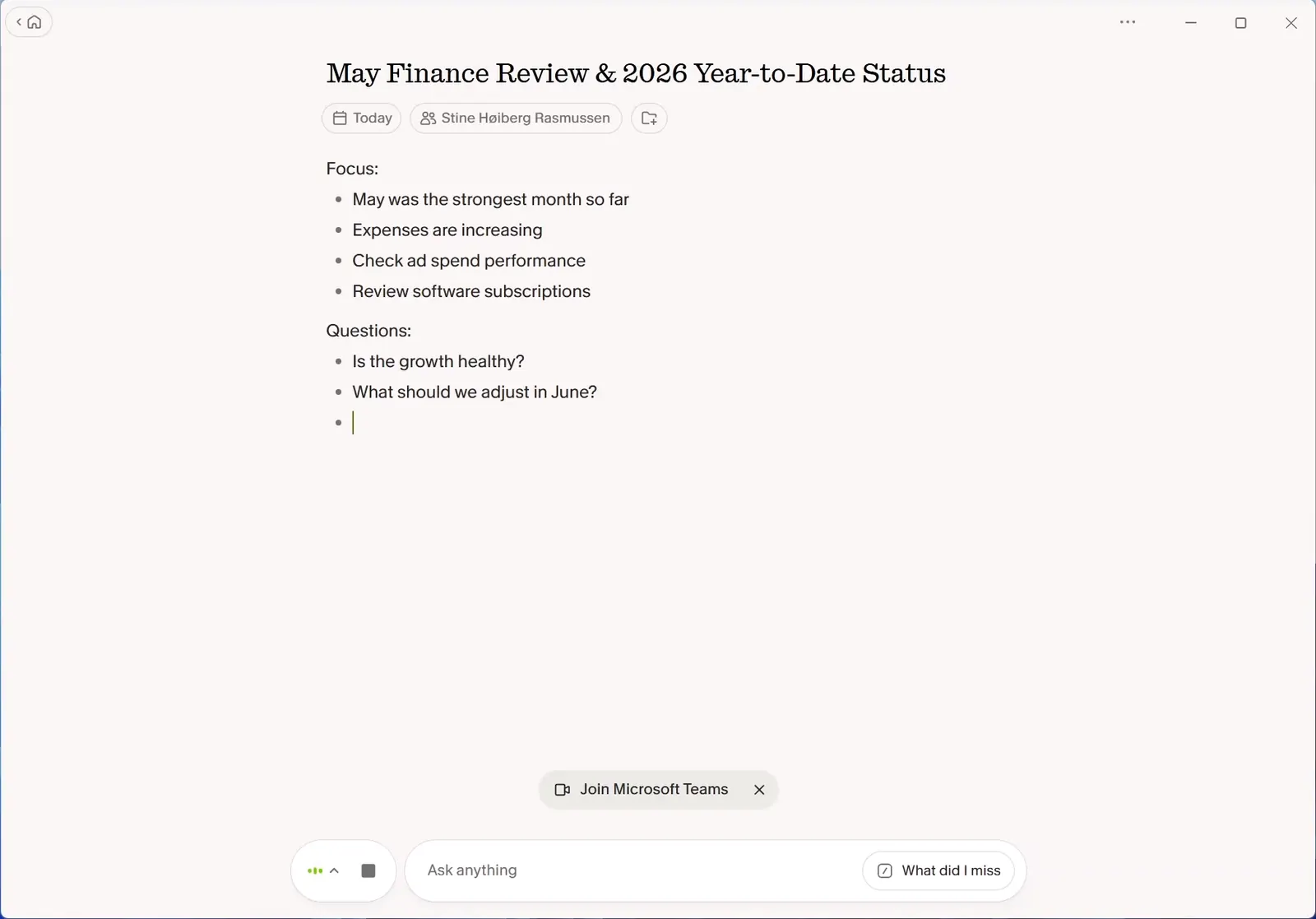
This is not just a reminder to yourself. Those notes are context that Granola uses when the summary gets written afterwards, and they become the backbone of the finished write-up. Five minutes of preparation here does more for the quality of the summary than anything else in the whole setup.
Step 4: Run the meeting
Start the Teams meeting as you normally would. Granola picks up that the meeting is running and starts transcribing.
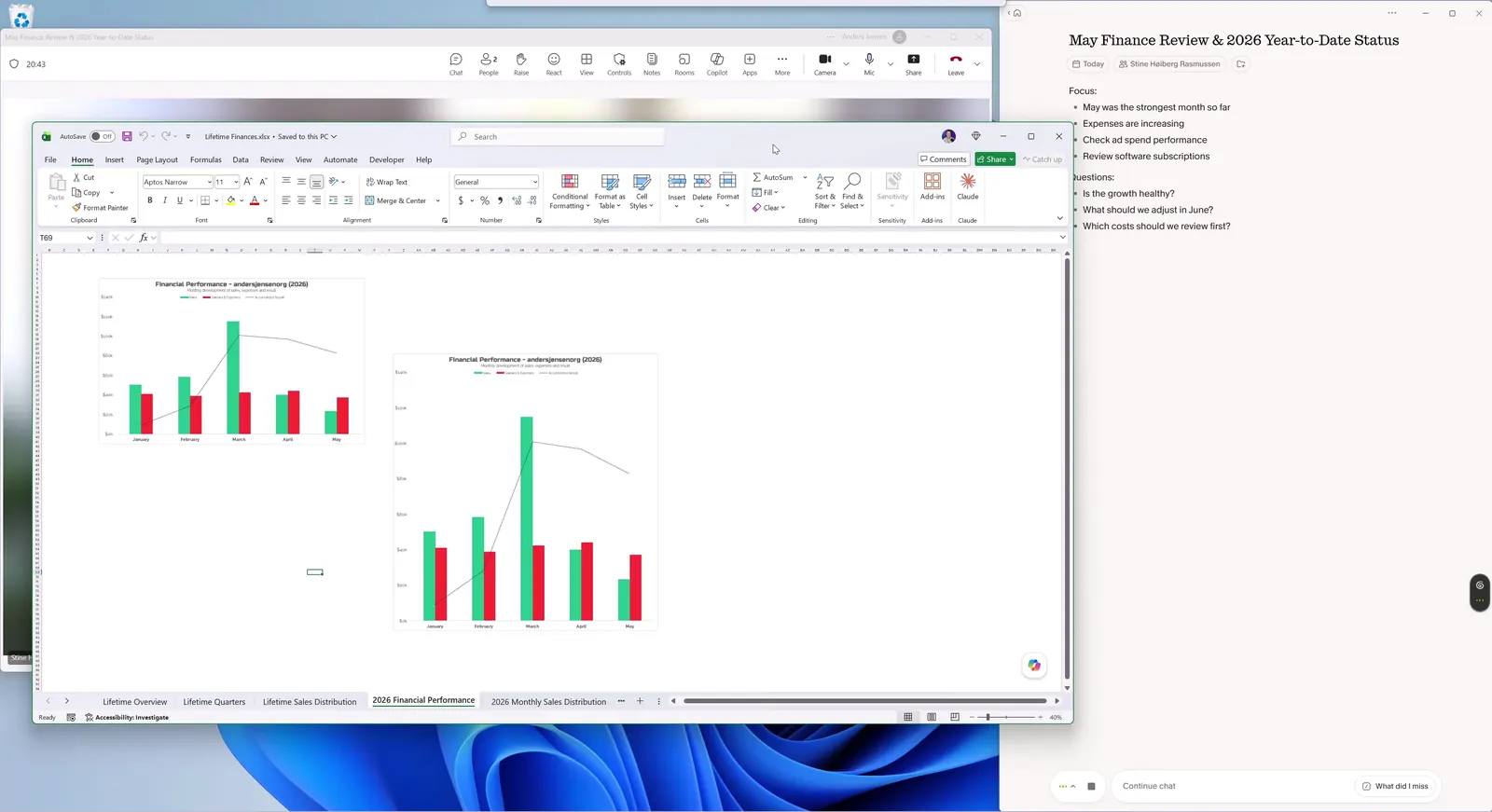
Look at the participant list: No bot has joined. Granola listens through your computer's audio instead of dialling into the call. That also means nobody else in the meeting is told that you are taking notes.
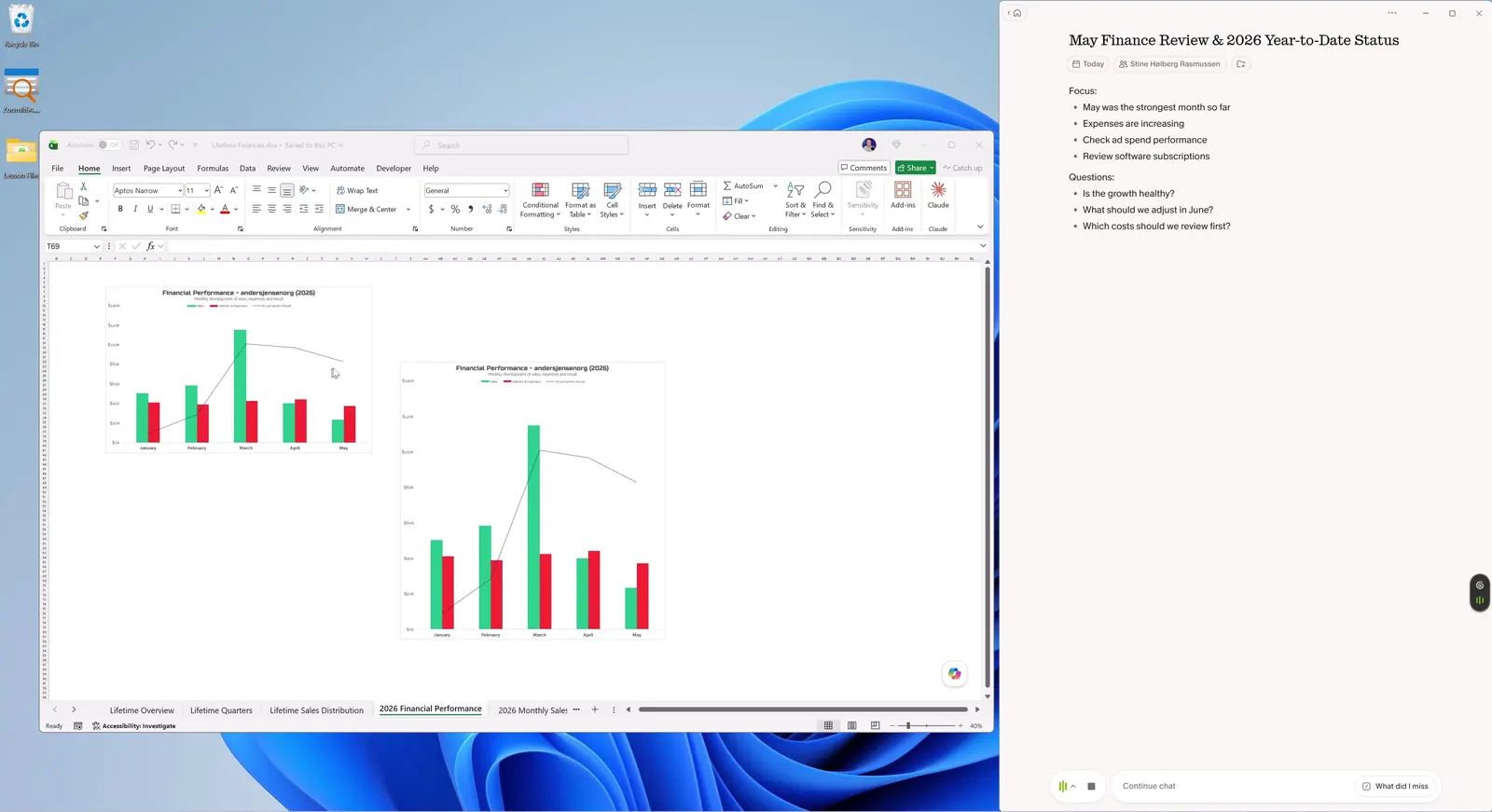
During the meeting you only jot down keywords. Decisions, numbers, things to follow up on. Everything that gets said, Granola already has.
Step 5: Ask as you go
The "Ask anything" field is yours alone. The others in the meeting cannot see it, and you can use it mid-conversation.
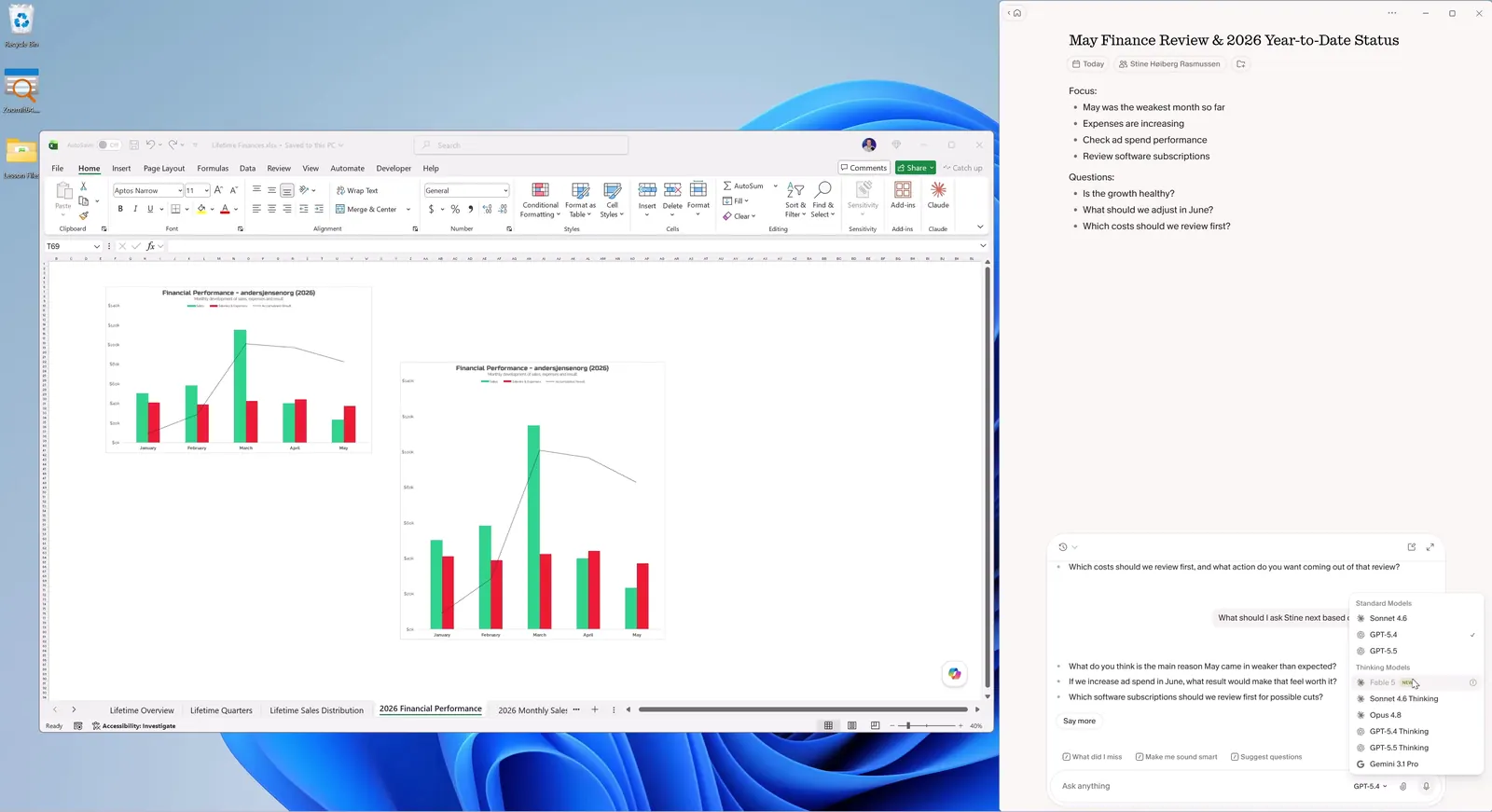
Three things are worth knowing:
- Recipes: Ready-made prompts you call with a slash. There is one that catches you up on what you missed, and one that suggests your next question.
- Model choice: You can switch model as you go. Pick a fast one over a thinking one. In the middle of a meeting, two seconds of response time is the difference between using it and not.
- Attach files: You can attach a document and ask about it while you are discussing it.
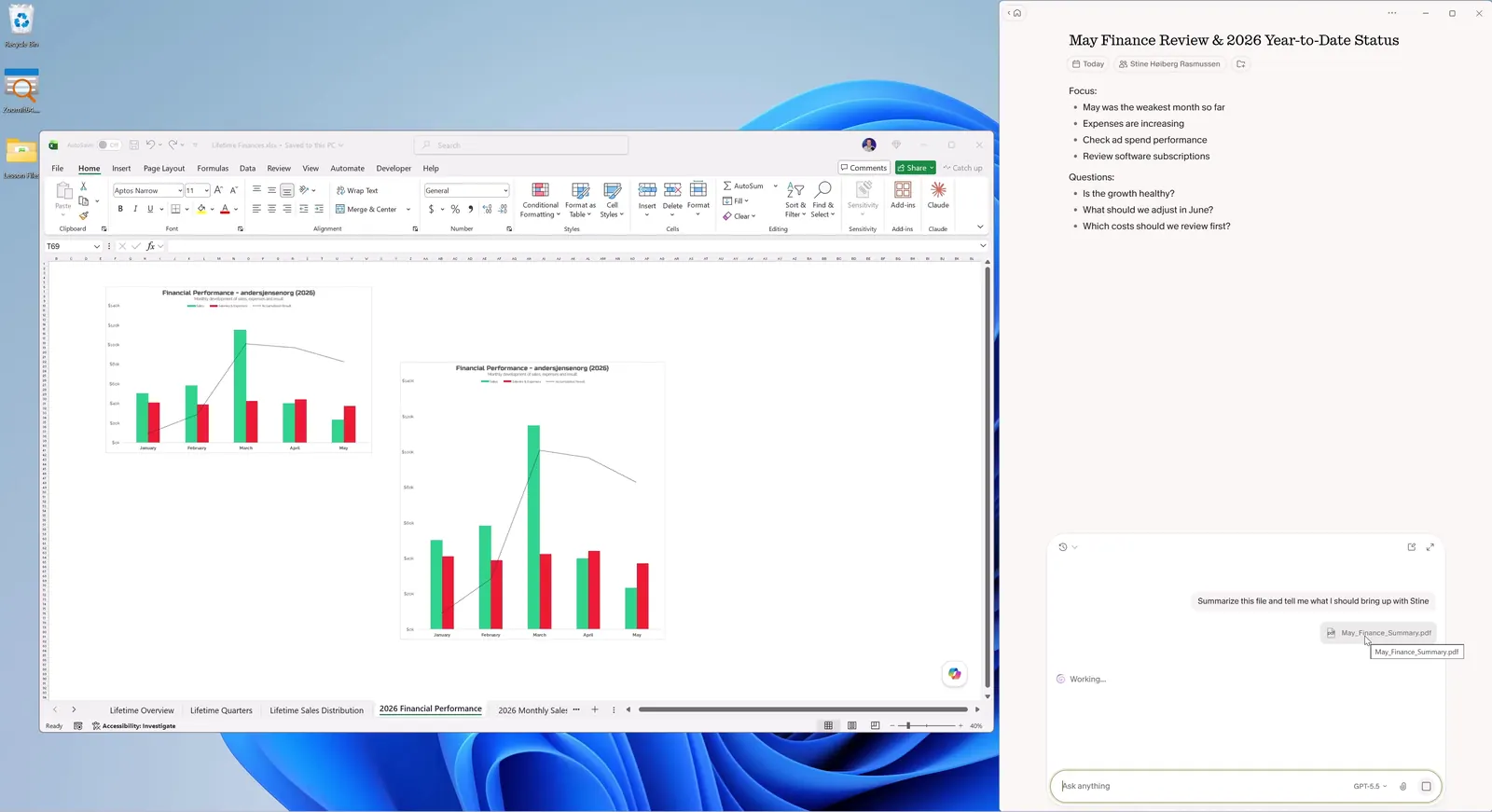
Step 6: The summary after the meeting
When the meeting ends, Granola pulls the transcript, your keywords and your preparation together into one structured summary with sections and action items.
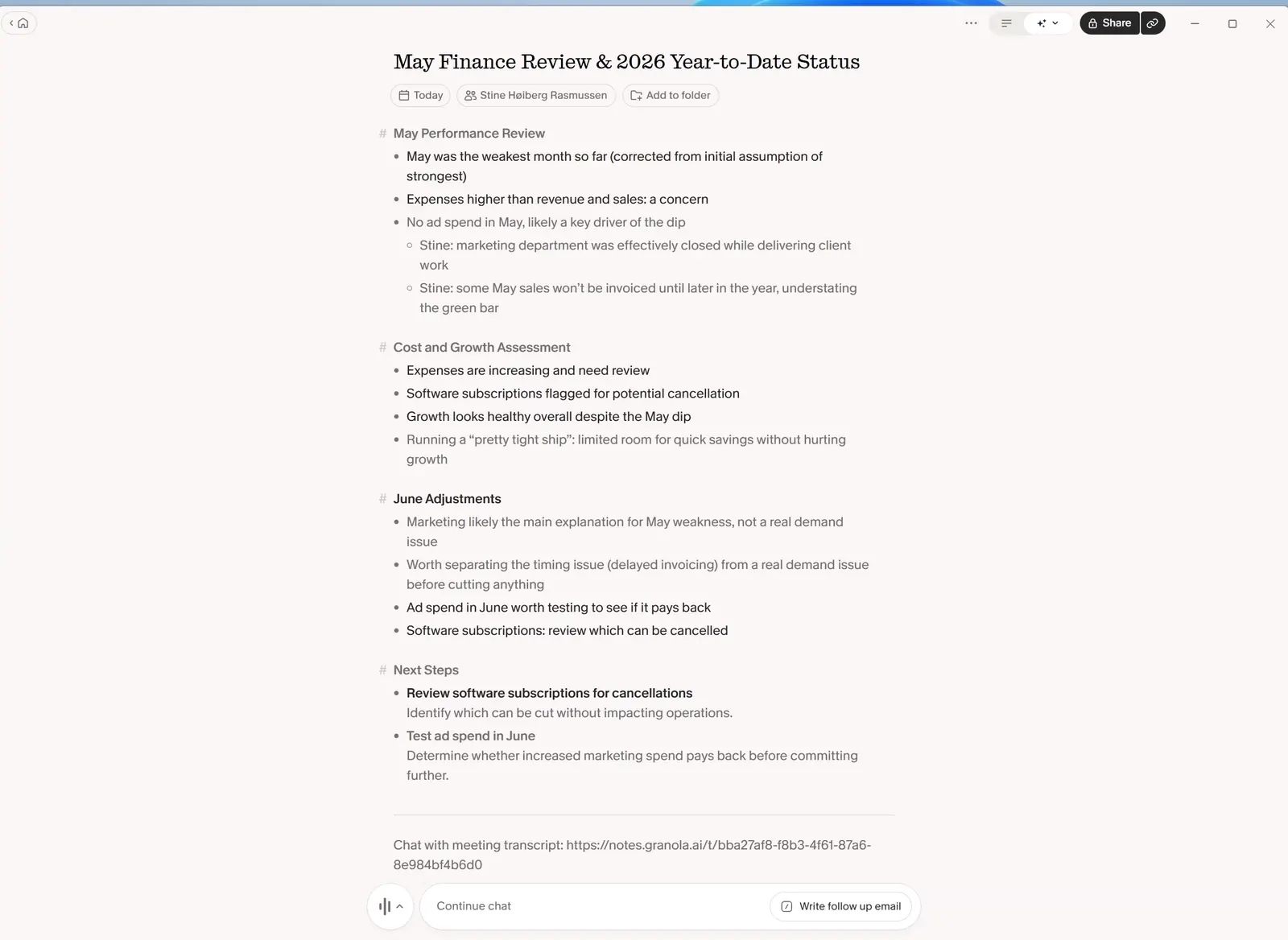
You can keep asking about the summary afterwards, for example for the decisions and action items on their own, or for a draft of the follow-up email.
Step 7: Edit and share
The summary is editable. Fix what has been misunderstood and cut what should not go out, before you send it on.
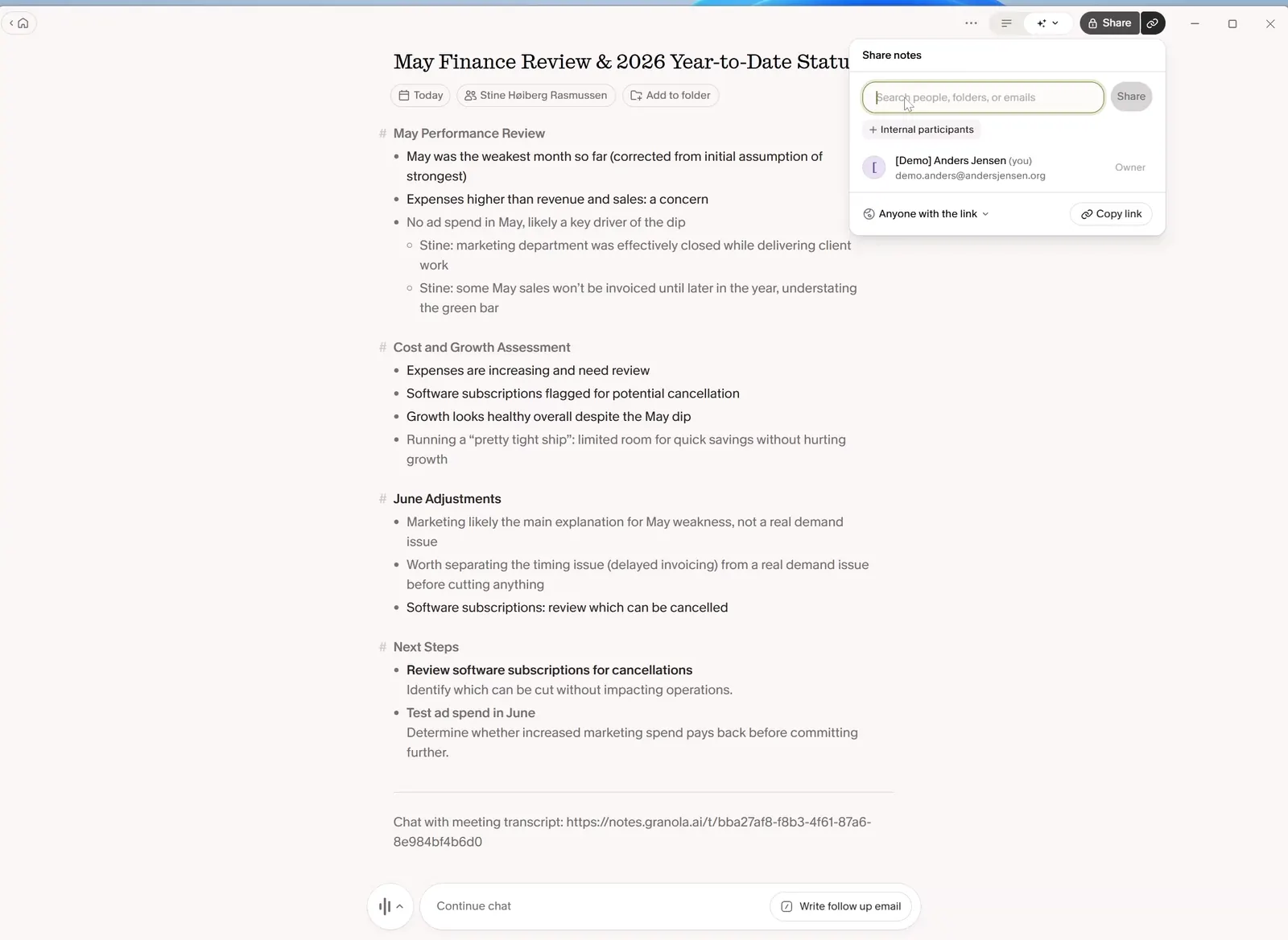
- Click "Share" in the top right corner.
- Send the summary by email, or copy the link.
- Add colleagues as attendees on the note if you want to work on it together.
What it does not do
Three caveats worth carrying with you:
- It is not a compliance recording. If you are required to record meetings and keep them in a particular place, use Teams' own recording. Granola sits outside that chain.
- The summary still has to be read. It is good, but it is not something you forward unseen. Numbers and names in particular are worth checking.
- It runs on your machine. Granola hears what your computer plays. If you join the meeting from your phone, or you are in a room where the audio never passes through your computer, it captures nothing.
Granola also states that the app works the same way in Zoom, Google Meet and in-person meetings. I have only tested the Teams side myself, so that stands as their claim and not as my experience.
Next step
What makes this setup interesting is that the summary now exists as data. When the meeting ends there is a note with a title, a summary and a link, and all of that can be pulled out and passed on automatically.
That is exactly what I do in the guide to Granola's API and Power Automate, where the summary lands in a Teams chat by itself the moment the meeting is over.
Start with the setup here on your next meeting. My link gives you the first month free, and a single meeting is enough to tell whether it fits the way you work.