Skip to content
Menu

Articles

How to use RegEx in Power Automate

How to use Regular Expressions in Power Automate: build patterns, test them, and extract structured data from emails and documents in your cloud flows.

Anders Jensen Automation & AI Instructor

Intro

If the data is structured, the go-to solution is using Regular Expressions (RegEx). This article assumes you know have a basic knowledge about RegEx. If that’s not the case, check this.

Office Scripts in Power Automate (The Free Solution)

Office Scripts is the “new VBA” and lets you automate everything in Excel on the web (Excel Online). The Office Scripts can be written in either JavaScript or TypeScript, which is almost the same.

Creating a simple TypeScript with RegEx support in Excel Online as an Office Script and then calling the Office Script from Power Automate is the solution for free RegEx support in Power Automate. So here is your 2-step cookbook:

Create the Office Script
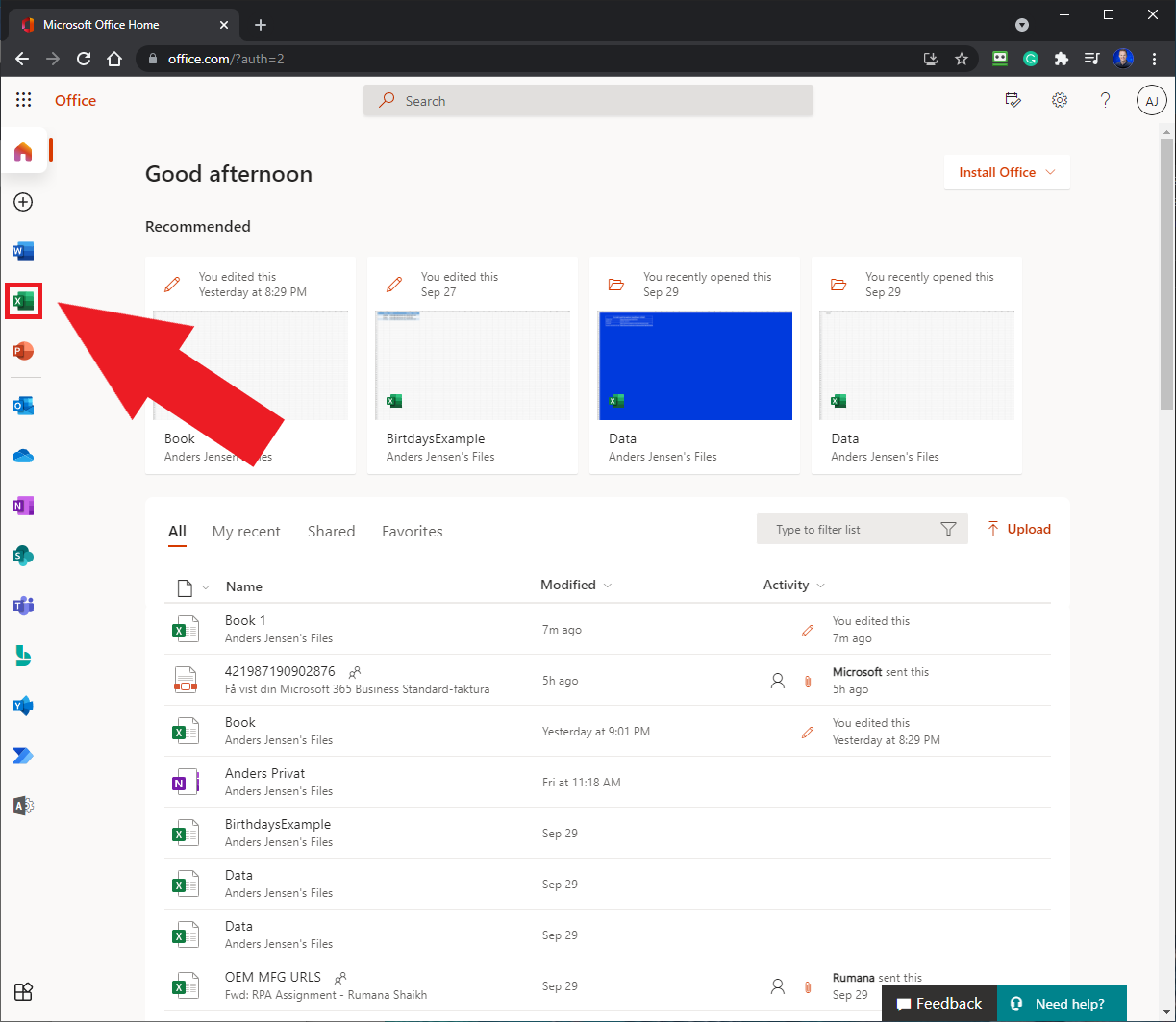
Fig. 1.1 - Go to Office.com and click the Excel icon

Go to https://www.office.com, log in with your Microsoft Credential, click the Excel icon (Fig. 1.1), and open a ‘New blank workbook’.

If you don’t see the Excel icon on your office.com page, click the nine black dots in the upper left corner and find the Excel icon here.
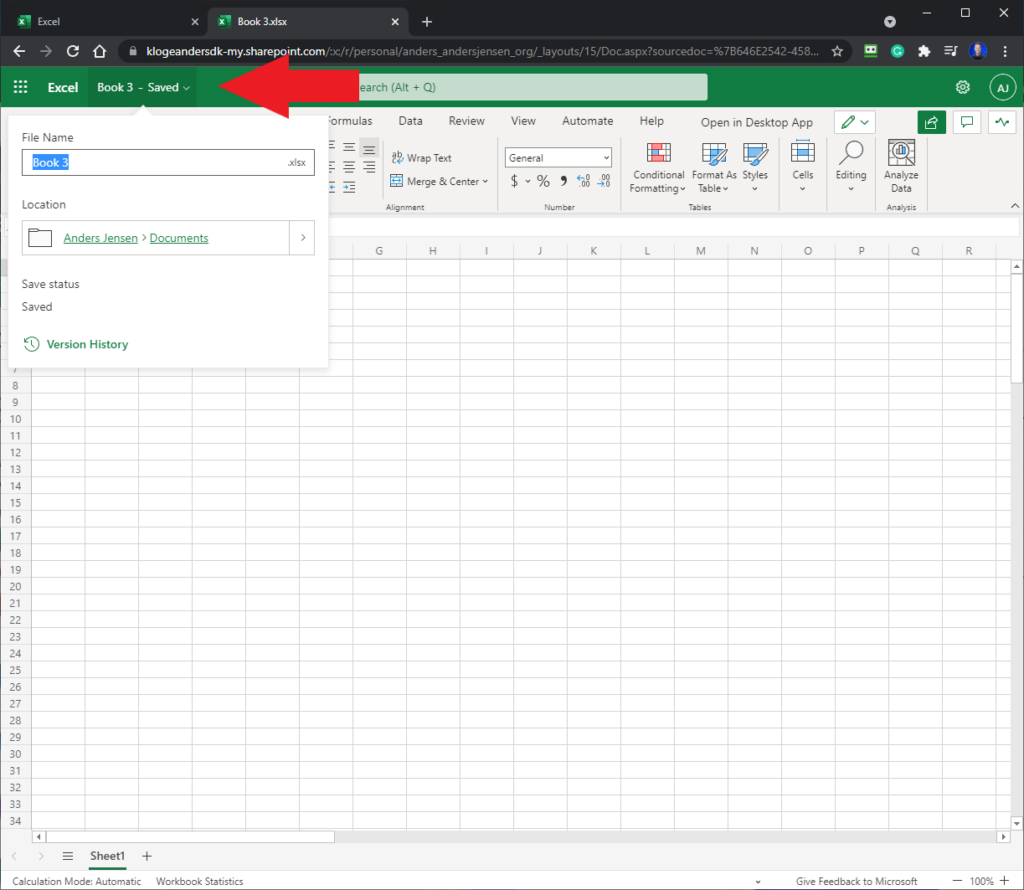
Fig. 1.2: Rename Excel Book

(This step is not necessary but recommended) If you don’t have an Excel book for the Office Scripts you use in Power Automate, this is the opportunity to create one. Rename the sheet by clicking on the current name of the Excel book (Fig. 1.2:) and change the file name ‘PowerAutomateScripts’.

This Excel book can now be used as a container for Office Scripts in Power Automate.
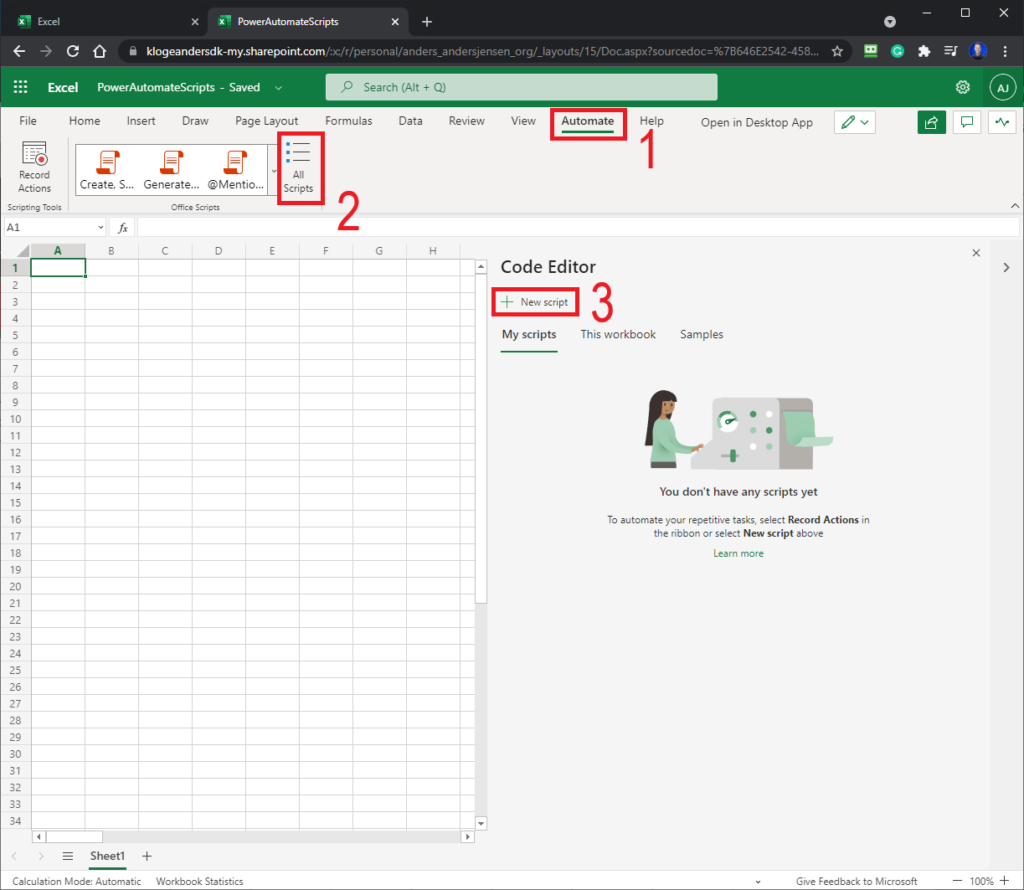
Fig. 1.3: Create a new Office Script

To create a new Office Script, click ‘Automate’ (in the top menu), then ‘All Scripts’, and finally ‘New Scripts’ (Fig. 1.3).
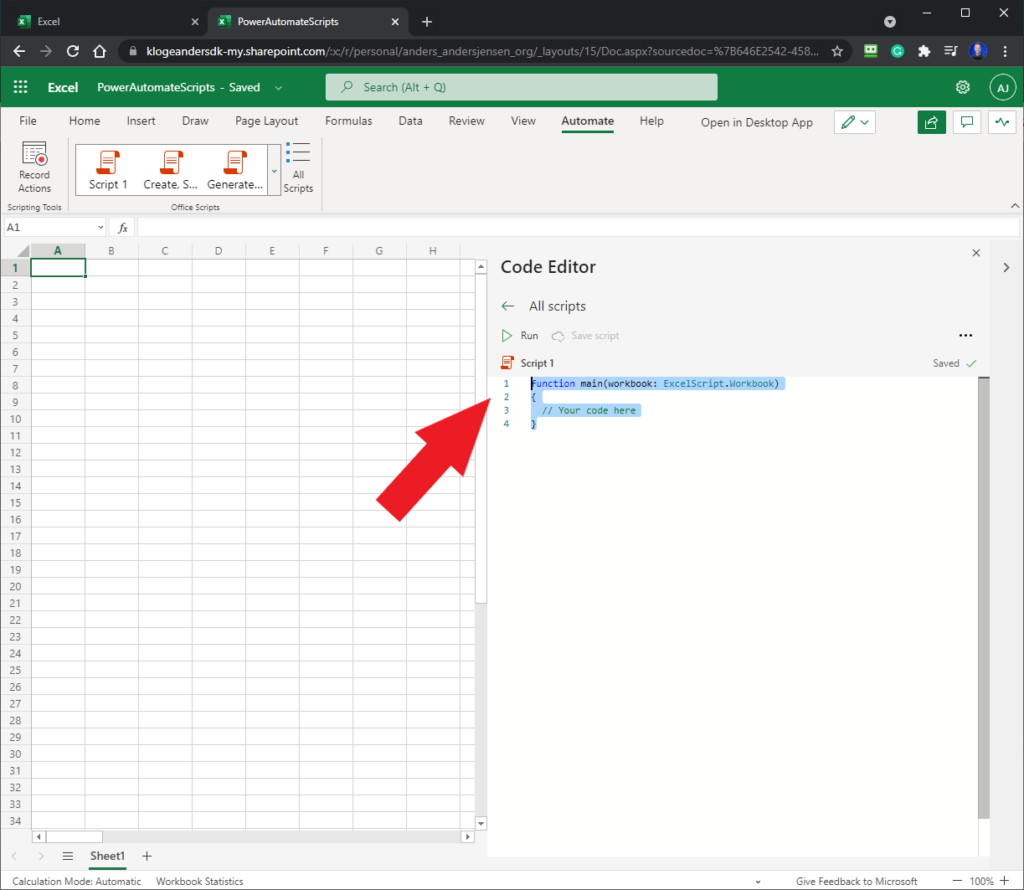
Fig. 1.4: Default Office Script

This is how a default Office Script looks like (Fig. 1.4). Mark the entire script with Ctrl+a, and then it will turn blue. Press delete and watch the default code disappear.

You can also rename the script by clicking on ‘Script 1’. Call it e.g. ‘RegEx Match’.

Finally, copy and paste the following script into the editor:

function main
  (
    workbook: ExcelScript.Workbook, inputString: string, pattern: string, flags: string
  ): Array<string> {
  let regExp = new RegExp(pattern, flags);
  let matches: Array<string> = inputString.match(regExp);

  if (matches) {
    return matches;
  } else {
    return [];
  }

}
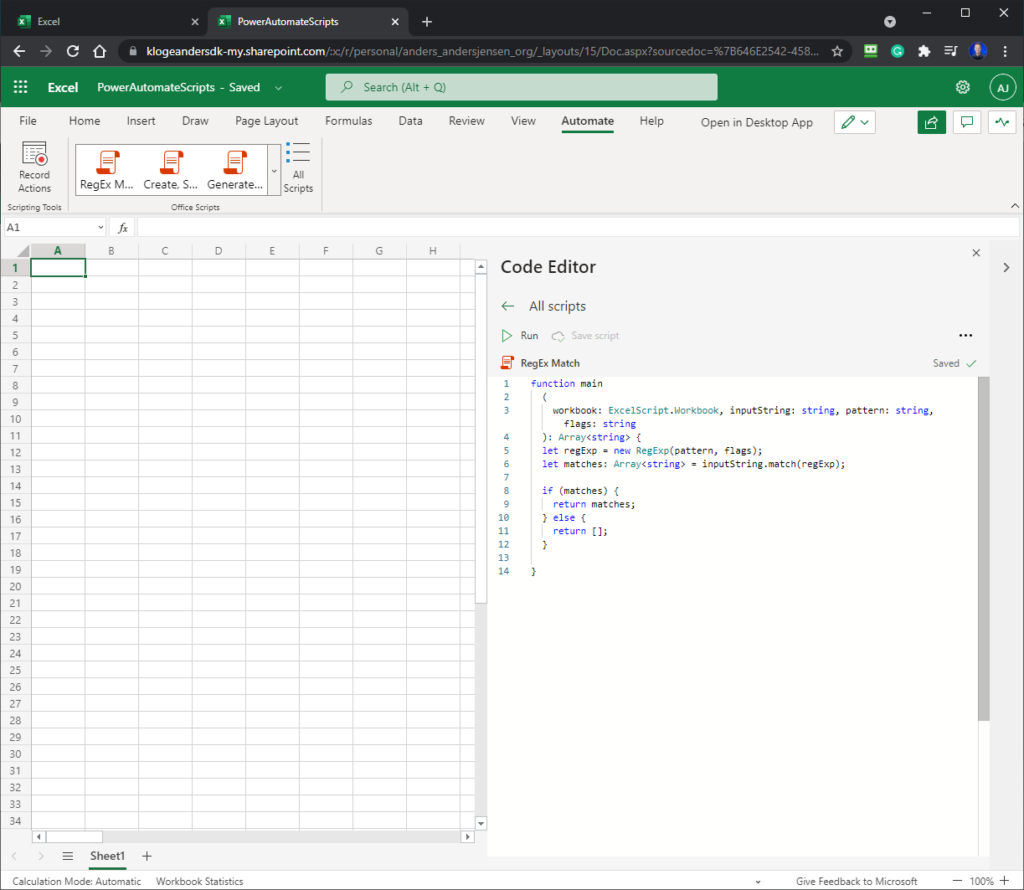
Fig. 1.5: The RegEx Script

Your script should look like this (Fig. 1.5). This Office Script can now be called in Power Automate.

Call the RegEx Office Script from Power Automate

Having created the Office Script in Part 1, the script can be called Power Automate.
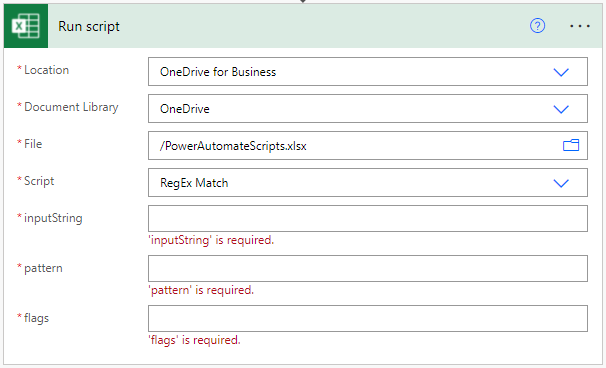
Fig. 1.6: Run script

Find the ‘Run script’ connector and fill in Location, Document Library, File, and Script (Fig. 1.6).

Three parameters need to be filled:

  • inputString: The input string is where you want to extract data. This could be dynamic content from a previous action.
  • pattern: Your RegEx pattern.
  • flags: Your RegEx flags.
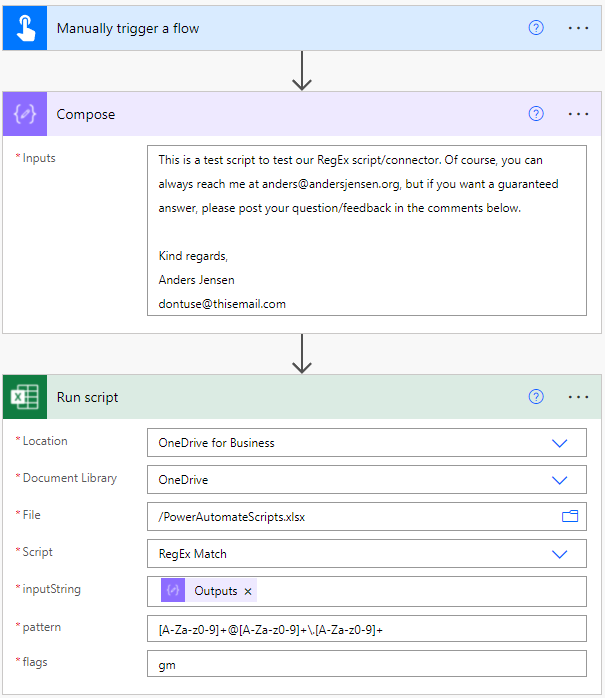
Fig. 1.7: RegEx example flow

Fig 1.7 shows how to use the RegEx Office Script:

  • Manually trigger a flow. Simple attended automation where the user starts the flow.
  • Compose. The input string. It could come from all static and dynamic sources in Power Automate.
  • Run script. Fill in the settings/parameters. In ‘inputString’, we use the previous ‘Compose’ dynamic content. The RegEx pattern is filled in ‘pattern’ and likewise the flags.

My InputString:

This is a text script to test our RegEx script/connector. Of course, you can always reach me at anders@andersjensen.org, but if you want a guaranteed answer, please post your question/feedback in the comments below. Kind regards, Anders Jensen dontuse@thisemail.com

My RegEx pattern:

[A-Za-z0-9]+@[A-Za-z0-9]+\.[A-Za-z]+
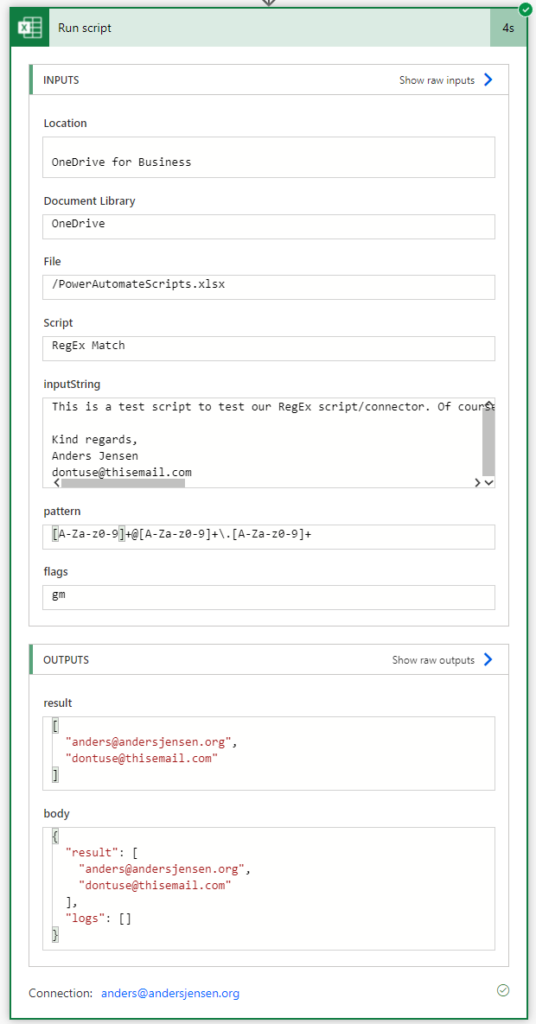
Fig 1.8: The result

Run the flow and then inspect the output under ‘result’ (Fig. 1.8). This is an array of strings and is our matches.
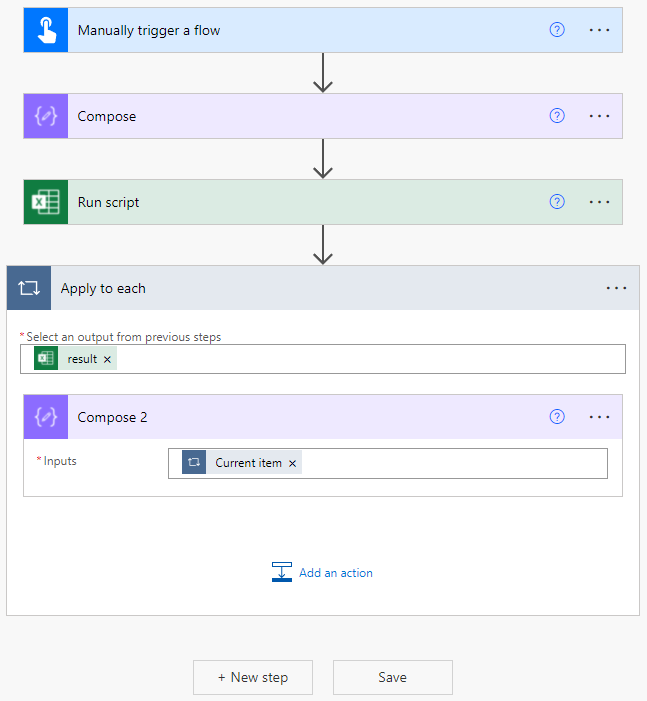
Fig. 1.9: Print the results

Fig. 1.9 shows how to print the results. That is, print each string in the array of strings. First, use an ‘Apply to each’ with the ‘result’ as input. Now Add a ‘Compose’ and in ‘Input’ use the dynamic output from the ‘Apply to each’.
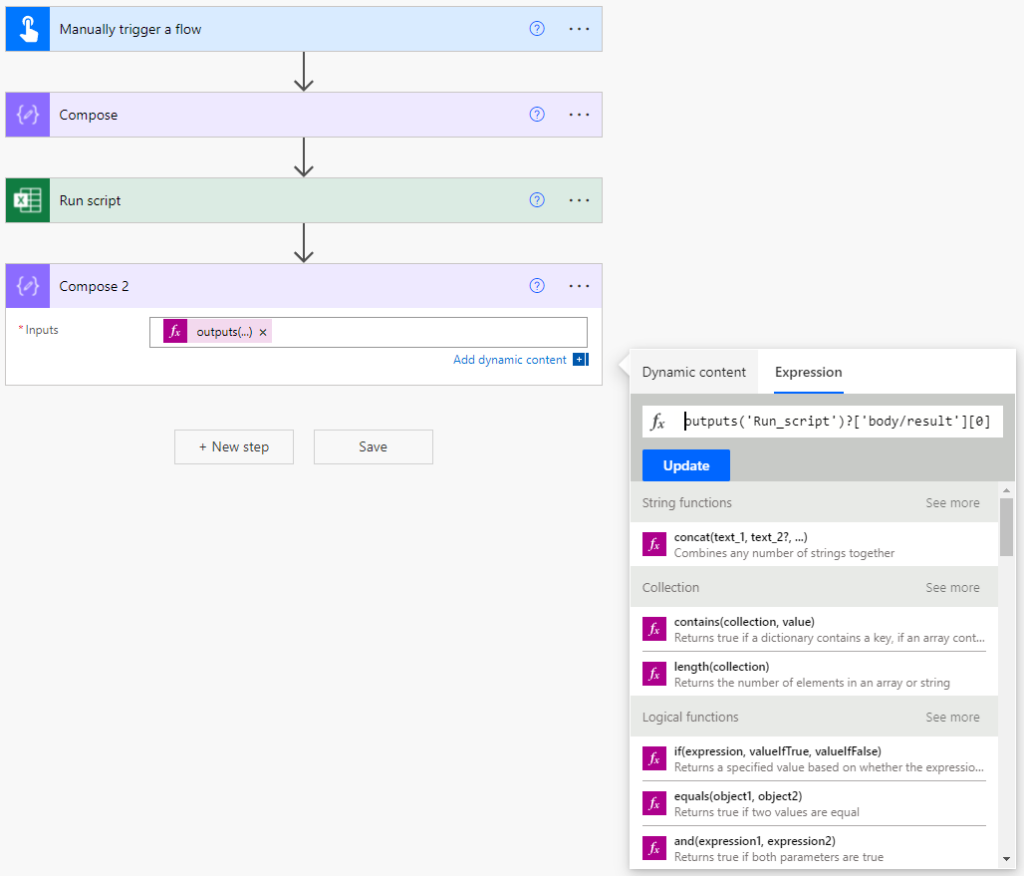
Fig. 1.10: Print a specific item

Fig. 1.10 shows how to print a specific item of our matches in the array of strings by using the expression:

outputs('Run_script')?['body/result'][0]

Plumsail - Unlimited RegEx in Power Automate

You’ll most likely find the Office Scripts Regex solution useless if you’re working in an enterprise setup. Because you’re only allowed to do 400 Office Scripts calls from Power Automate daily.

Plumsail is the go-to solution for enterprise RegEx support in Power Automate. It’s not free but reasonably priced.

Setup a Plumsail Account
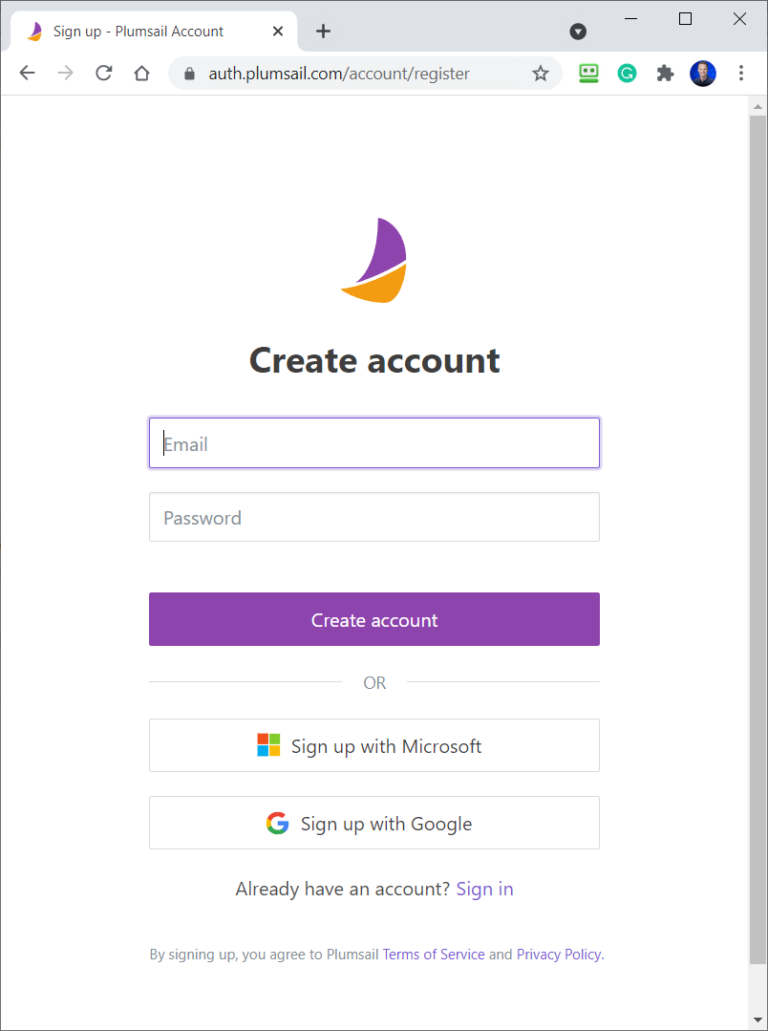
Fig. 2.1: Create a Plumsail Account

Navigate to https://auth.plumsail.com/account/register and create an account (Fig 2.1). If you’re not logged in afterward, please do so.
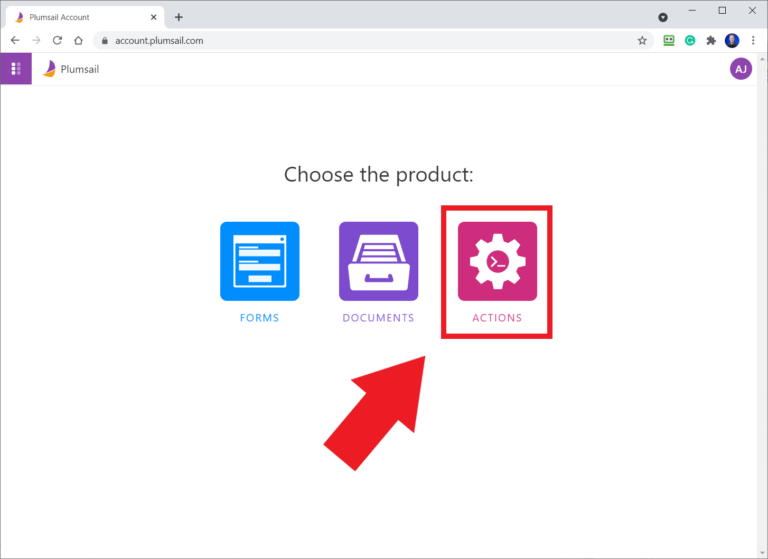
Fig. 2.2: Go to Actions

Go to ‘Actions’ by clicking the icon (Fig. 2.2). If you don’t see it, find it by clicking the 6 “white dots” in the upper left corner.
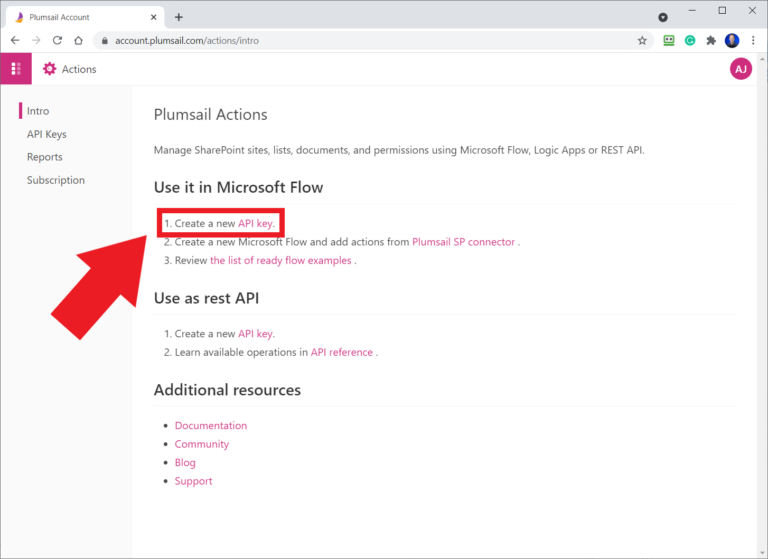
Fig. 2.3: Create API key

Click ‘API key’ in ‘Create a new API key’ (Fig. 2.3).
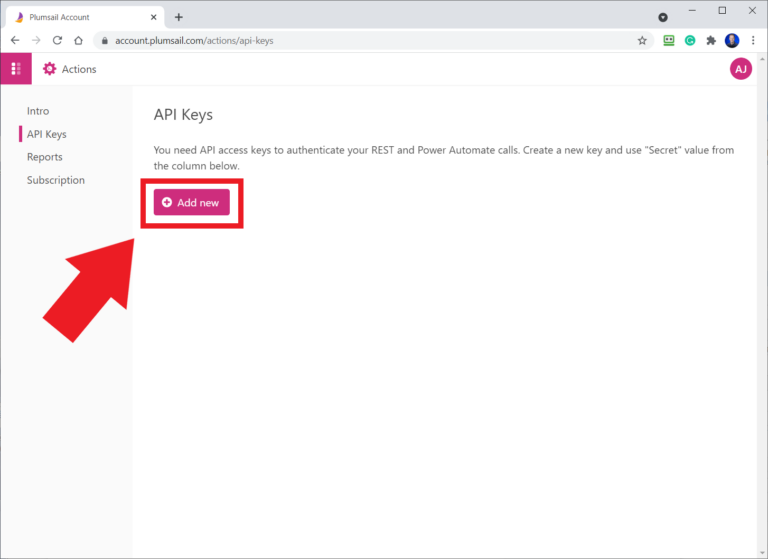
Fig. 2.4: Add new

Click ‘Add new’.

Fig. 2.5: Create a new API key

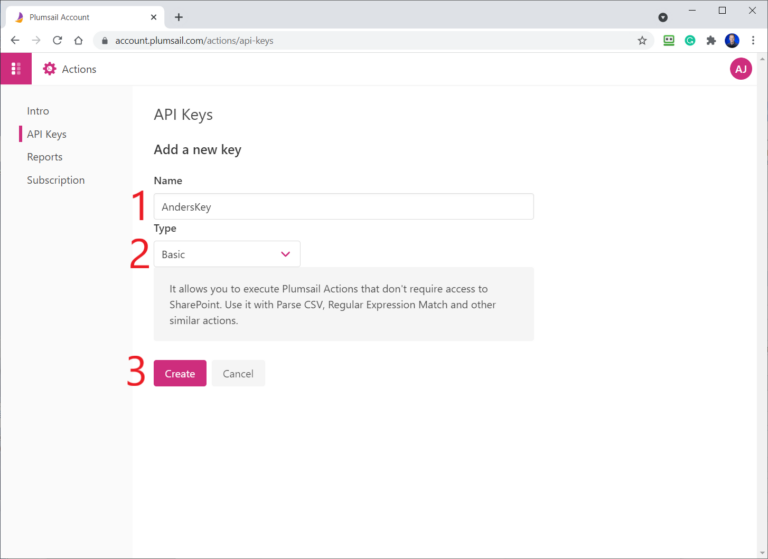
Give your key a name (1), Choose the ‘Basic’ type in the drop-down menu (2) and click ‘Create’ (Fig. 2.5).
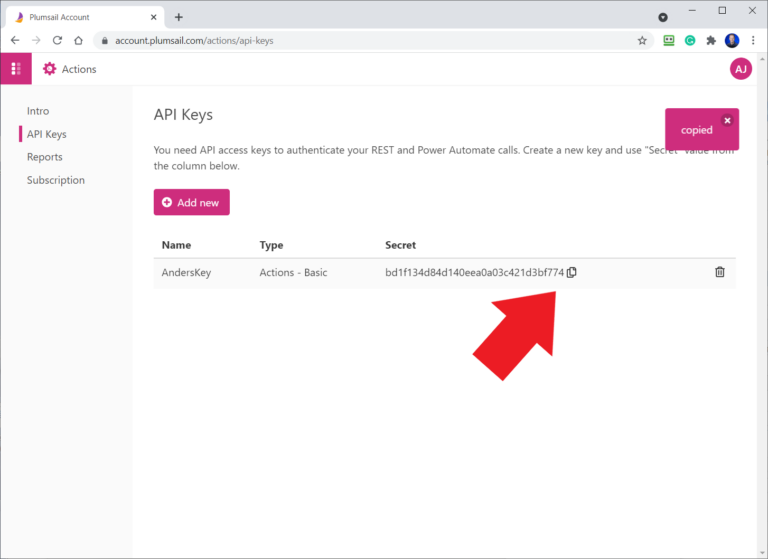
Fig. 2.6: Copy API key

Copy the created API key (Fig. 2.6). We’re going to use it in Power Automate.

Use the Plumsail connector in Power Automate

More articles

  • Microsoft Power Automate - Tutorial for Beginners [2021]

    Complete Power Automate tutorial for beginners: build your first cloud flows step by step with triggers, actions, conditions, and real-world examples.

    Read more →
  • Copilot Cowork: How to give access with a pilot group

    Copilot Cowork requires usage-based billing before anyone gets access. Enable it in the Microsoft 365 admin center with a pilot group, credit limits, and alerts.

    Read more →
  • Should You Enable Agents in Microsoft 365 Copilot?

    Many organizations disabled agents in Copilot out of caution. Here are the facts on security, access, controls, and risks so you can decide on an informed basis.

    Read more →

Comments (14)

These comments were migrated from the previous version of this site. Commenting is closed.

  1. John G

    Excellent post, Anders. Thanks for sharing. The limit on the number of Office Scripts an individual can run per day has been updated from 400 to 1,600. This is a pretty big jump; probably has something to do with the fact that people are using a lot of Office Scripts (now that I've been introduced to them by your post, I'm sure I will!). Ref: https://docs.microsoft.com/en-us/office/dev/scripts/testing/platform-limits

    1. Anders Jensen Author

      Hey John. That's so awesome. 1600 might still be too less when automating in the enterprise space, but it's getting there If you want, you're very welcome at my developer community: https://discord.gg/d8KQpTUvFD And thanks a lot for the nice words Kind regards, Anders

  2. Power automate start

    Hi, i am currently using AI builder to extract the invoice amount from invoices. The workflow is setup in a way that the data will be stores in an Excel file. The issue is that i want to remove characters like: €,£ and text: “vat” how can indo this with regex can you please help me i am lost searched for hours on internet then i found this which could be the solution but i am not familiar with regex

    1. Anders Jensen Author

      Hey my friend. Can you post the extracted text? Either here or at my Discord: https://discord.gg/d8KQpTUvFD Kind regards, Anders

  3. Pankaj Verma

    Hi Anders, Could please provide me regex for extracting the URL from text. for your ref below is the kind of URLs need to be extrated.. https://jp.mercari.com/user/profile/694199619?utm_medium=share&utm_source=ios https://detail.1688.com/offer/737802537055.html?_t=1705034383213&spm=a2615.7691456.co_0_0_wangpu_score_0_0_0_0_1_0_0000_0.0 https://v.douyin.com/iLj72UyS/ https://jp.mercari.com/user/profile/694199619?utm_medium=share&utm_source=ios https://detail.1688.com/offer/737802537055.html?_t=1705034383213&spm=a2615.7691456.co_0_0_wangpu_score_0_0_0_0_1_0_0000_0.0 https://eur02.safelinks.protection.outlook.com/?url=https%3A%2F%2Fbusiness.facebook.com%2F61553619604448%2Fphotos%2F122099994878120653&data=05%7C02%7Cpankaj.verma%40chanel.com%7C48b8faaeae1044c96c8f08dc6466bae1%7Ce6cbec2f2f2343ca82c451a7c9b71e7a%7C0%7C0%7C638495639604611314%7CUnknown%7CTWFpbGZsb3d8eyJWIjoiMC4wLjAwMDAiLCJQIjoiV2luMzIiLCJBTiI6Ik1haWwiLCJXVCI6Mn0%3D%7C0%7C%7C%7C&sdata=EnEdQX8Acbc1PZwycRNotzIJtpXF67THQdby3hq8HTo%3D&reserved=0 https://eur02.safelinks.protection.outlook.com/?url=https%3A%2F%2Fbusiness.facebook.com%2F61553619604448%2Fphotos%2F122099994884120653&data=05%7C02%7Cpankaj.verma%40chanel.com%7C48b8faaeae1044c96c8f08dc6466bae1%7Ce6cbec2f2f2343ca82c451a7c9b71e7a%7C0%7C0%7C638495639604618880%7CUnknown%7CTWFpbGZsb3d8eyJWIjoiMC4wLjAwMDAiLCJQIjoiV2luMzIiLCJBTiI6Ik1haWwiLCJXVCI6Mn0%3D%7C0%7C%7C%7C&sdata=uOByQg3pFIUKrTb9x%2Bzdfxv4ATUj40v6zad0oFkjcyU%3D&reserved=0

    1. Stine Høiberg Rasmussen

      Thanks for writing 😊 We’re getting more than 50 messages daily. While we read all of them, we can’t reply to everyone 😔 But we’ve created an RPA/Automation community where we’re 14,000+ RPA Developers helping each other with solutions and our careers. It’s free, and you can find it here: https://discord.gg/iloveautomation Kind regards, Stine

  4. Magnus Jägre

    Hi Anders, thanks for your instructive video and site. Question: when i call for Run Script in Powerautomate i dont have the option to enter pattern and flags. Is there a setting im missing?

    1. Anders Jensen Author

      Hey Magnus, thanks a lot 😊😎 No, you should have it? You're more than welcome to post the question with a screenshot in my community: https://discord.gg/iloveautomation It's 100% free. Kind regards, Anders

  5. Nee

    Hello Anders, How can I modify your office script to extract only the username, copy it to another sheet. My regex is: .*(?=@)

    1. Stine Høiberg Rasmussen

      Thanks for writing 😊 We're getting more than 50 messages daily. While we read all of them, we can’t reply to everyone 😔 But we’ve created an RPA/Automation community where we’re 14,000+ RPA Developers helping each other with solutions and our careers. It’s free, and you can find it here: https://discord.gg/iloveautomation Kind regards, Stine

  6. Bades E

    I have an issue where if the email contains a full stop in the local-part it excludes anything before the full stop. For example, "first.last@email.com" would be output as "last@email.com"

    1. Anders Jensen Author

      Thanks for writing 😊 I'm getting more than 50 messages daily. While I read all of them, I can’t reply to everyone 😔 But I’ve created an RPA/Automation community where we’re 14,000+ RPA Developers helping each other with solutions and our careers. It’s free, and you can find it here: https://discord.gg/iloveautomation Kind regards, Anders

  7. Austin

    Incredibly helpful. This is the simplest and most complete workaround I could find for Power Automate lacking a native regex feature. The Typescript code for the Excel sheet worked out of the box. Cheers, Anders! 🍻

    1. Anders Jensen Author

      Thanks a lot, Austin 😊🙌 In these days, ChatGPT, Gemini or Copilot could also have been used. Have a great day, kind regards, Anders