If you have decided to enable agents in Microsoft 365 Copilot, the next question is how to manage them in practice. This guide shows you step by step where agent management lives in the Microsoft 365 admin center: How to see every agent in your tenant, block the ones you don't want, roll the right ones out to a pilot group, and set rules for the rest. If you are still weighing the on/off decision itself, we have gathered the facts in the article Should You Enable Agents in Microsoft 365 Copilot?
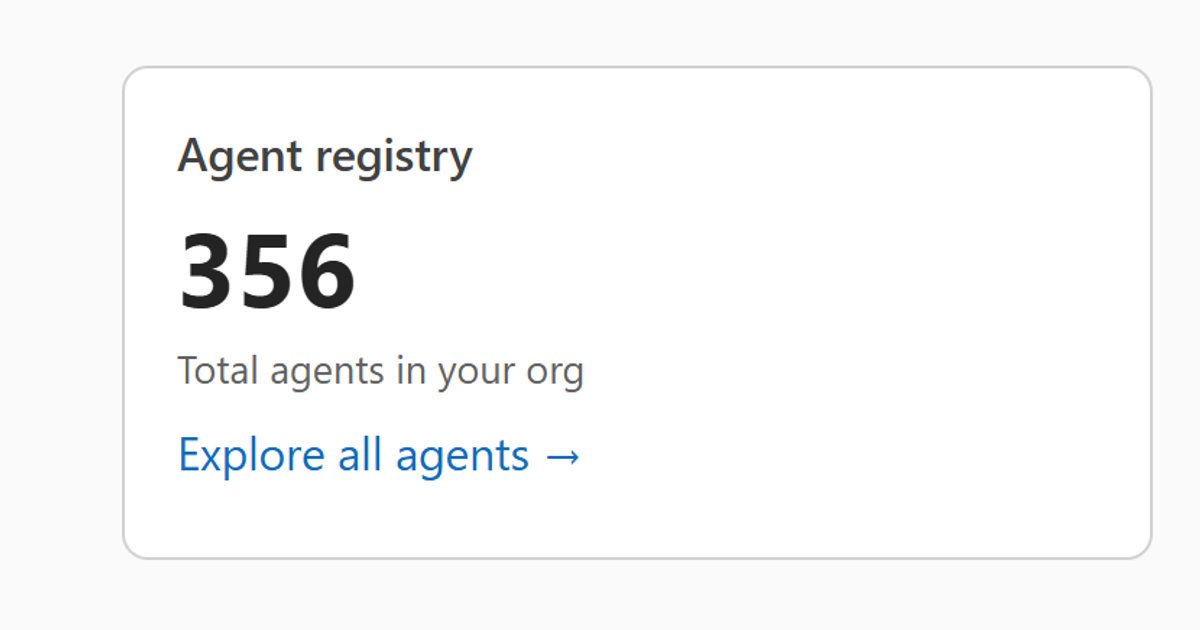
Every screenshot is from our own tenant this week. We are a small company with five Microsoft 365 and Copilot users, and the registry still shows 356 agents. In other words, governance is not something you grow into; the need is there from day one.
What you need
- An administrator role with access to the Microsoft 365 admin center.
- Microsoft 365 Copilot in the tenant. Agent management comes with it; nothing extra needs to be purchased for what this guide covers.
- Patience with the preview labels. Several tabs carry Frontier badges, and at the time of writing, names and features shift month by month.
Along the way you will run into fields with a padlock, labeled "Unlock with Agent 365". Agent 365 is Microsoft's paid control plane on top of agent management, sold as an add-on and as part of Microsoft 365 E7. This guide shows the standard experience without Agent 365, because that is the one most organizations have. The padlocks are not errors; they are the price list.
Step 1: Find agent management
Agents now has its own item in the left navigation of the Microsoft 365 admin center with five subitems: Overview, All agents, Shadow AI, Tools, and Settings.
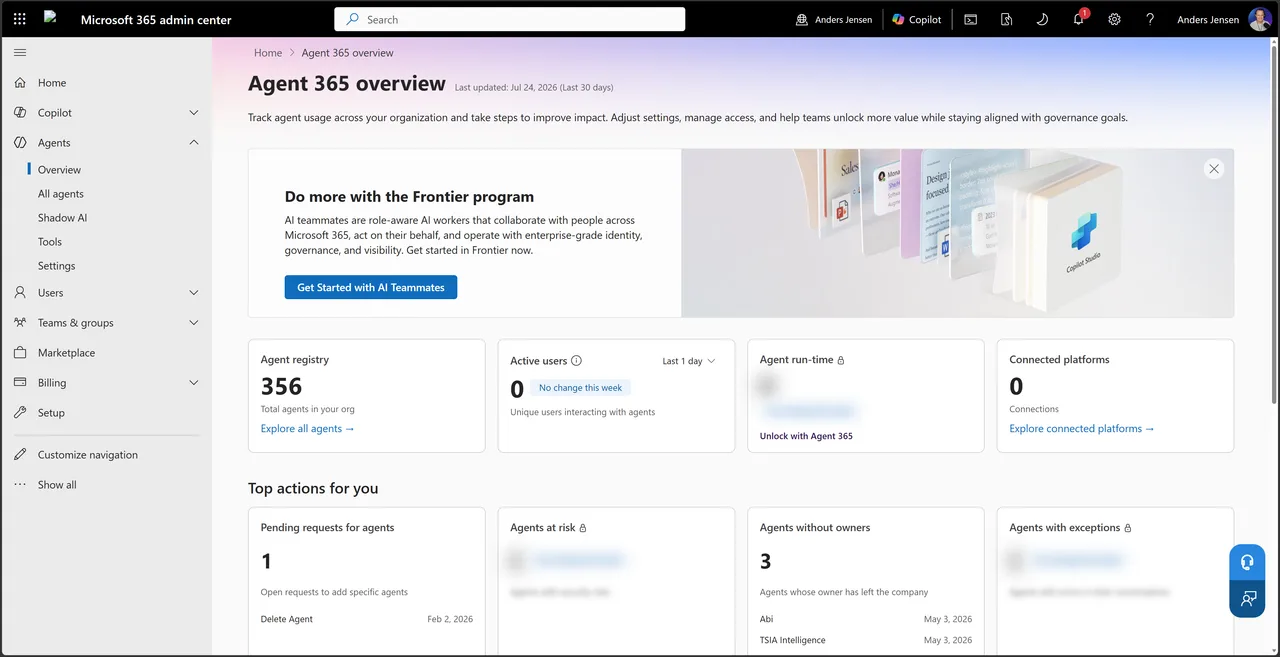
The Overview page summarizes the tenant: The number of agents in the registry, active users, and a row of cards, several of which are Agent 365 locked. Note, by the way, that the Shadow AI page has moved in here under Agents. I have covered what it does in the article on Shadow AI in the Microsoft 365 admin center.
Step 2: See every agent in your tenant
- Select "All agents" in the left navigation.
- The Registry tab shows every agent in the tenant with status, platform, and publisher.
- Use the Status, Publisher type, Platform, and Channel filters to narrow the list.
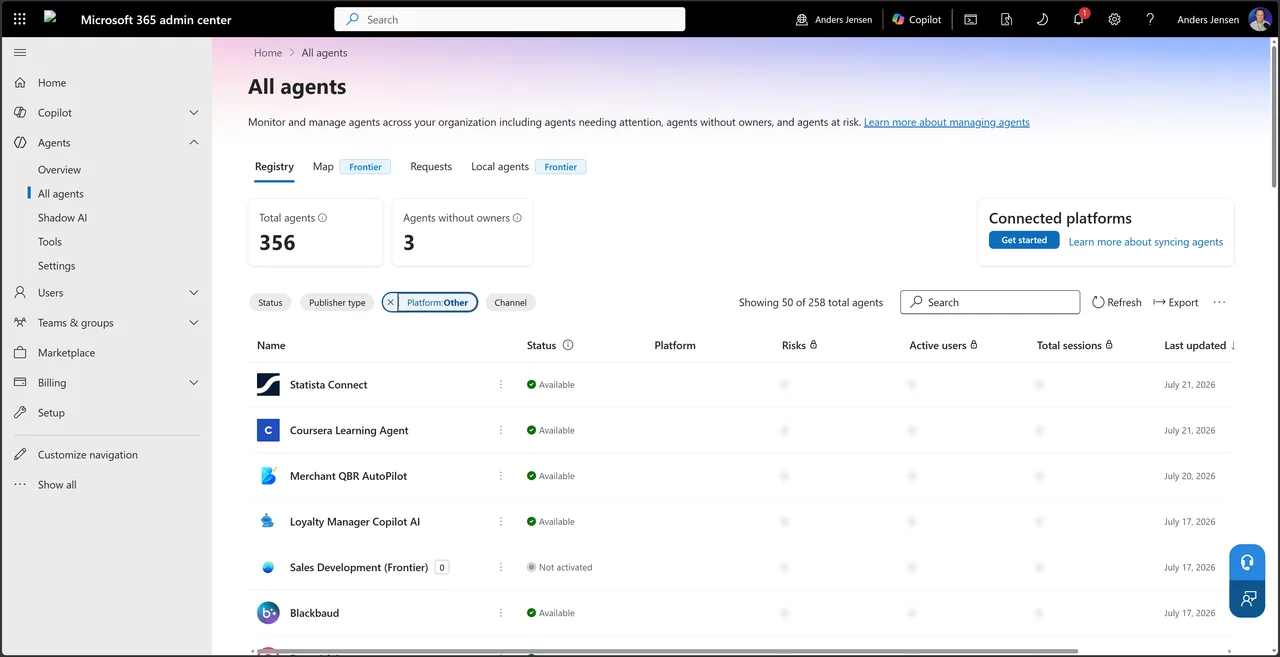
The registry is the foundation for everything that follows: You cannot govern what you cannot see. The list holds agents from Microsoft, your own, and third-party agents that come along with apps and integrations, and statuses range from Available through Draft to Not activated. In the screenshot we have filtered by platform, hiding our own Copilot Studio agents.
Step 3: Look up the individual agent
Click an agent in the list, and a details panel opens with tabs for users, data, permissions, and more.
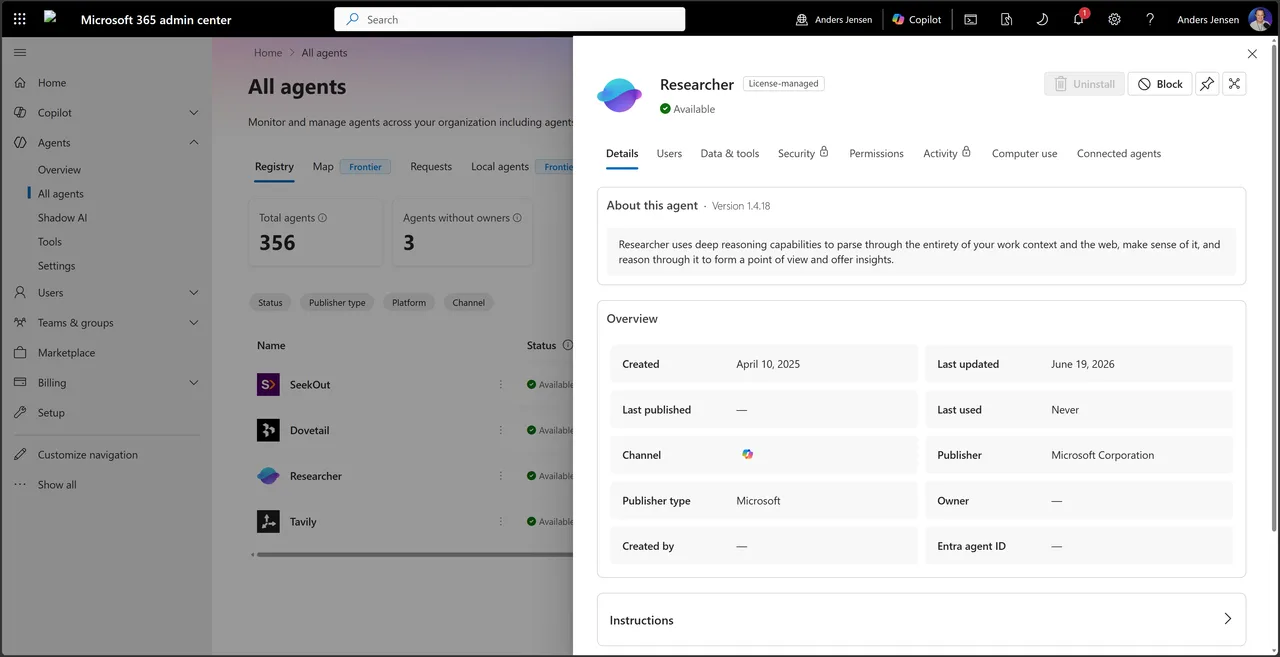
The tabs vary by agent type. Microsoft's Researcher has a "Computer use" tab, for example, while third-party agents instead show a Certification tab with their certification status. What they share is that you can see publisher, version, and data access before deciding anything.
Also note the "License-managed" label on agents like Researcher and Analyst: They are installed automatically for licensed users and governed by the license, not by a user list.
Step 4: Block an agent
- Open the agent from the registry list.
- Click "Block" at the top of the panel.
- Optionally provide a reason, and confirm.
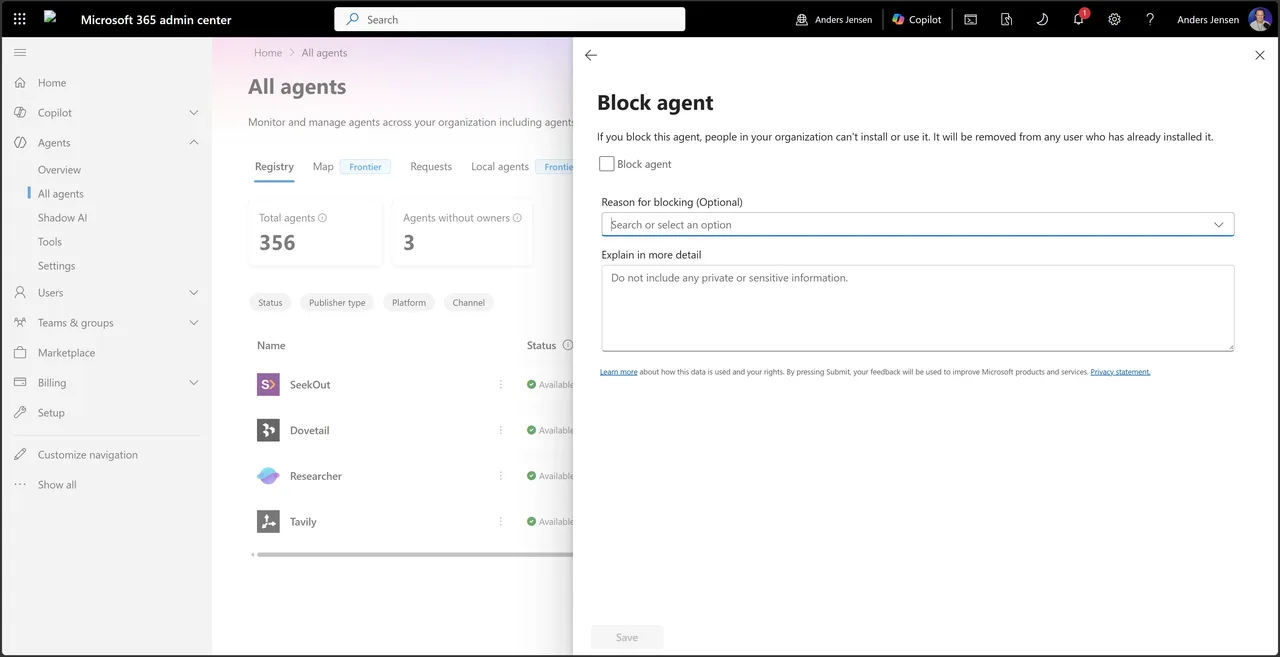
Two details are worth pausing at. First the consequence, in Microsoft's own words from the dialog: If you block an agent, no one in the organization can install or use it, and it is removed from any user who has already installed it. A block also cleans up retroactively, in other words. Second, the "Reason for blocking" field: Use it. Two years from now, this is where your successor finds the answer to why the agent was blocked, instead of having to guess. That is exactly the documentation most organizations are missing when old decisions need to be revisited.
Step 5: Control who can install an agent
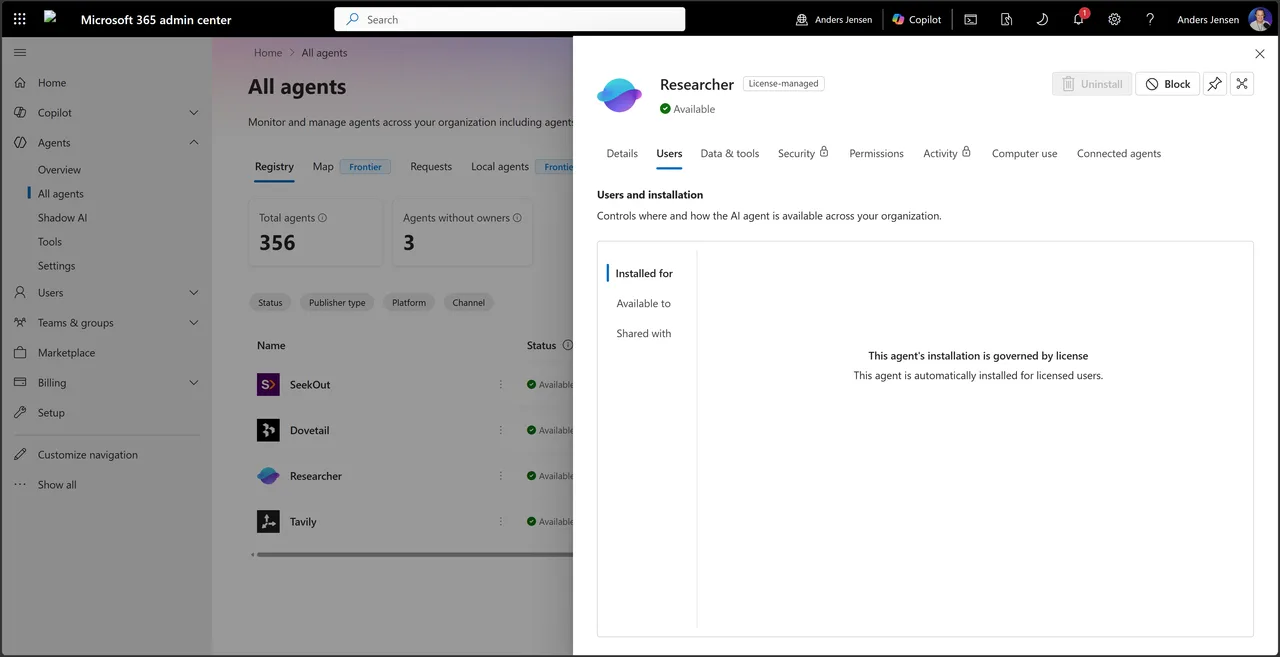
- Open the agent and select the "Users" tab.
- Select "Available to" in the panel's left menu.
- Choose between "All users", "No users", and "Specific users or groups", and add groups as needed.
- Save with "Save".
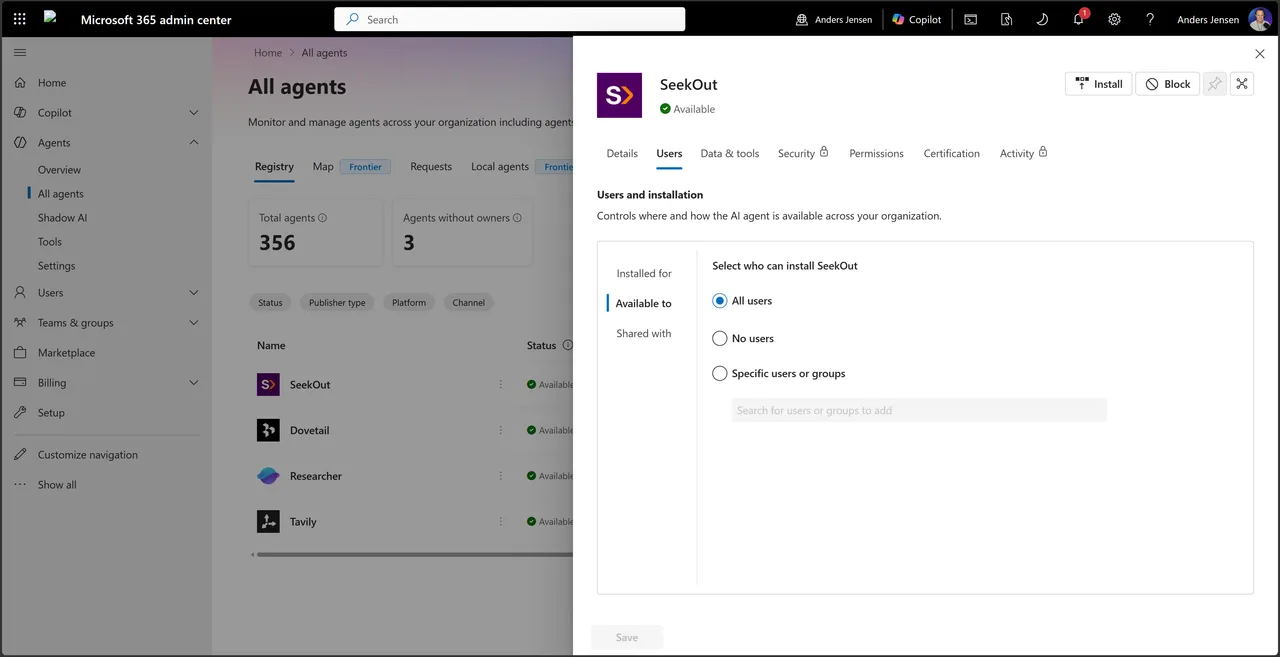
The middle option, "No users", is useful: The agent is neither blocked nor rolled out, just parked while you make up your mind. And "Specific users or groups" is the pilot group pattern: Roll out to a small security group first, see what happens, and expand afterwards. It is the same philosophy I used for spending policies in the guide on Copilot Cowork access with a pilot group.
Step 6: Set tenant-wide rules under Settings
Under Agents and Settings you will find five controls that apply to the whole tenant: Agent Management Rules, Allowed agent types, Policy template, Sharing, and User access.
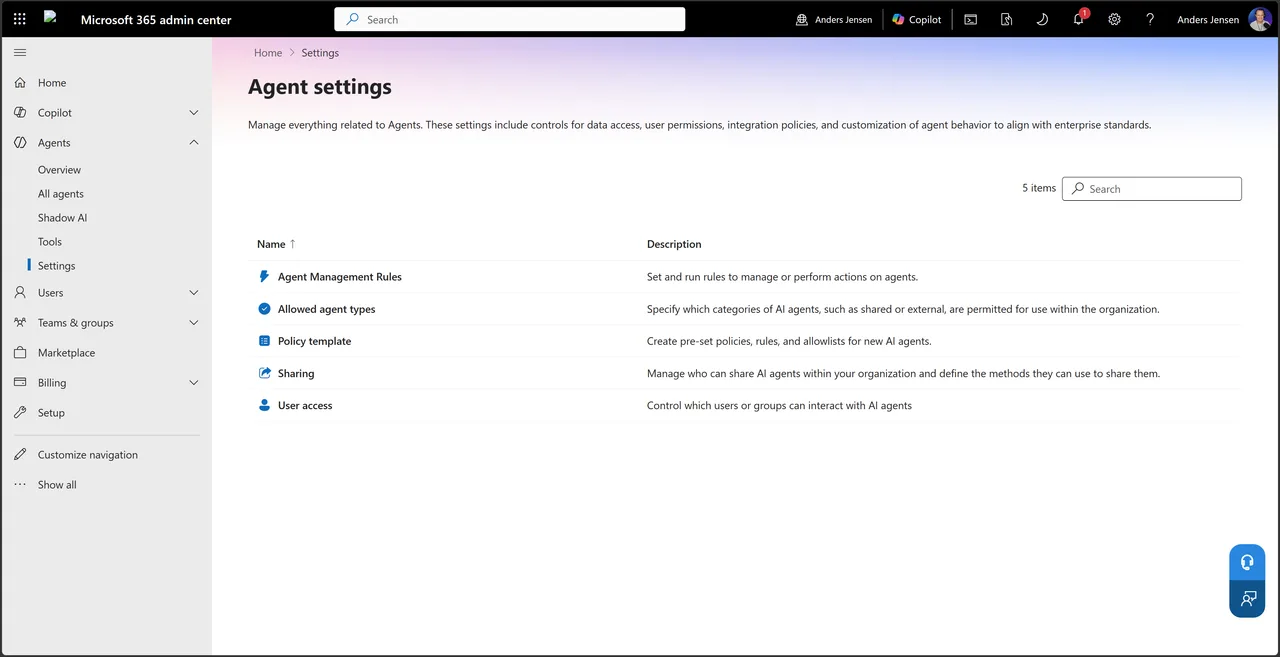
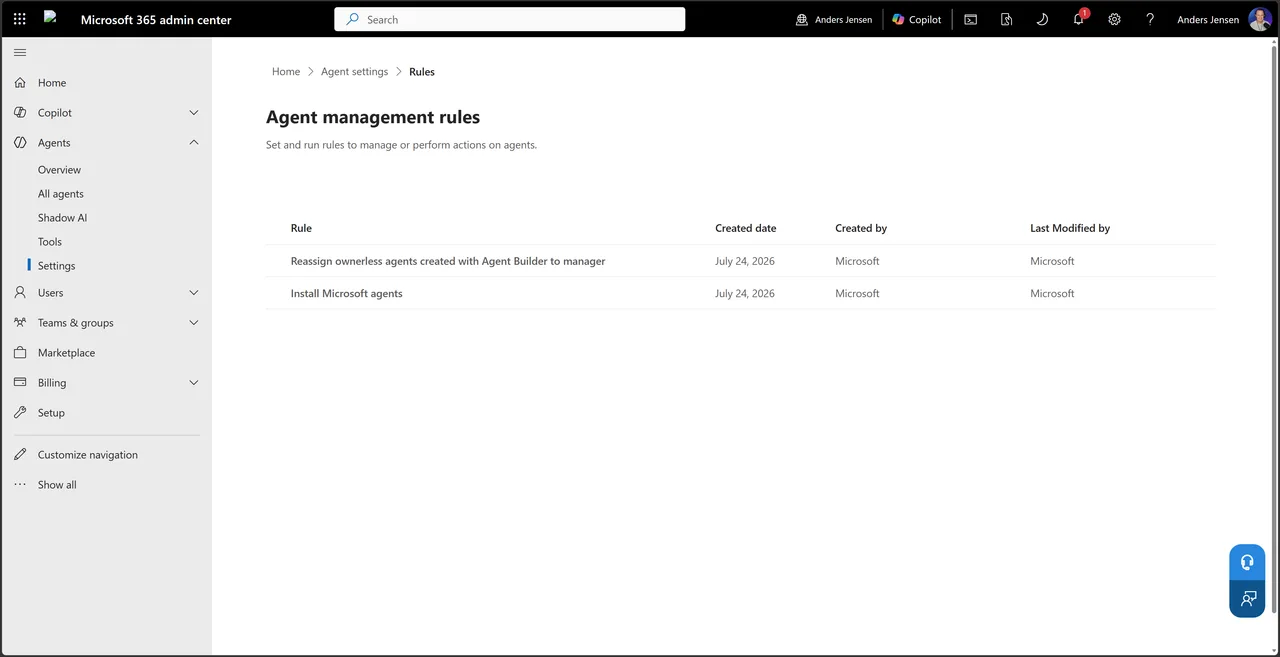
Agent Management Rules is a rules engine for bulk cleanup, and Microsoft has already put two rules in place: One that installs Microsoft agents broadly, and one that transfers ownerless Agent Builder agents to the previous owner's manager. Ownerless agents appear when employees leave the organization, and without the rule they have to be found and transferred manually.
Policy template also ships with two default templates, split by whether the agent has its own identity or not. The distinction is worth noting: Agents with their own identity are the entire premise behind Microsoft's Agent 365 push. Creating your own templates, on the other hand, requires Agent 365; the button carries the padlock.
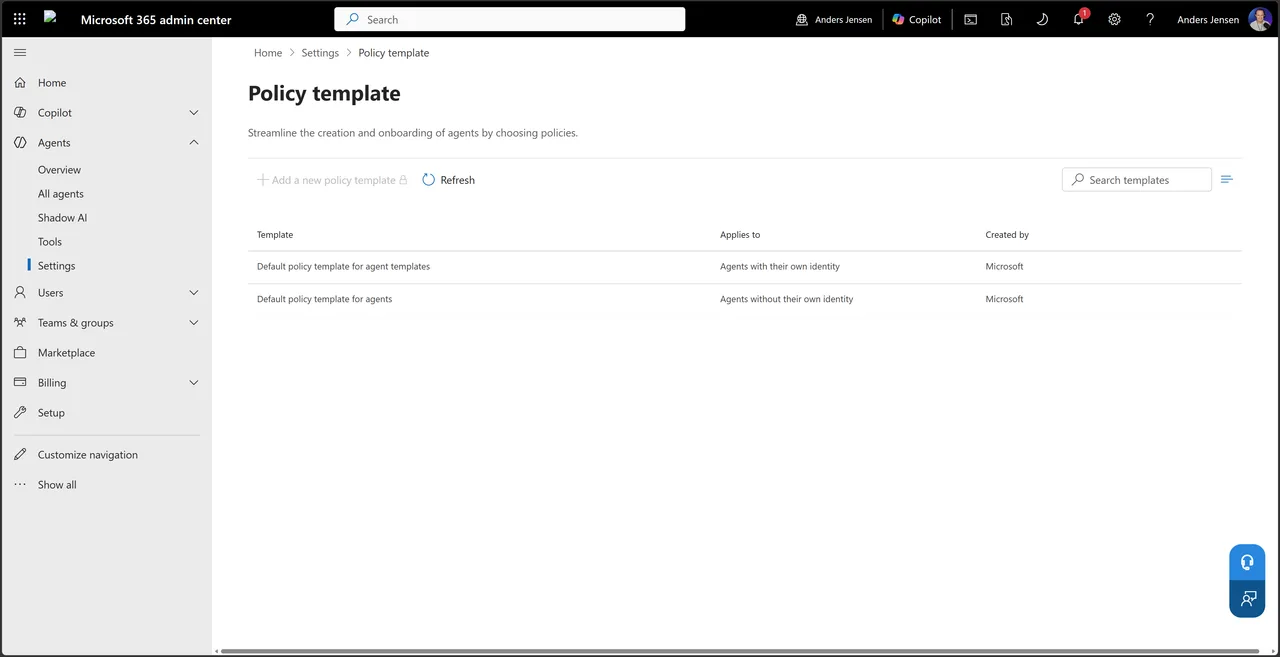
Allowed agent types controls which categories users can install from the agent store: Microsoft's own, your organization's, and external publishers, including certified only. Sharing controls who may share agents, but at the time of writing it only applies to agents built with Agent Builder. User access is the blunt on/off switch per user or group that the decision article covered.
Verify: See the result through the user's eyes
Open Microsoft 365 Copilot and select the agent store. What users see here is the sum of every decision above: Blocked agents are gone, scoped agents only appear for the right groups, and the types follow your Allowed agent types.
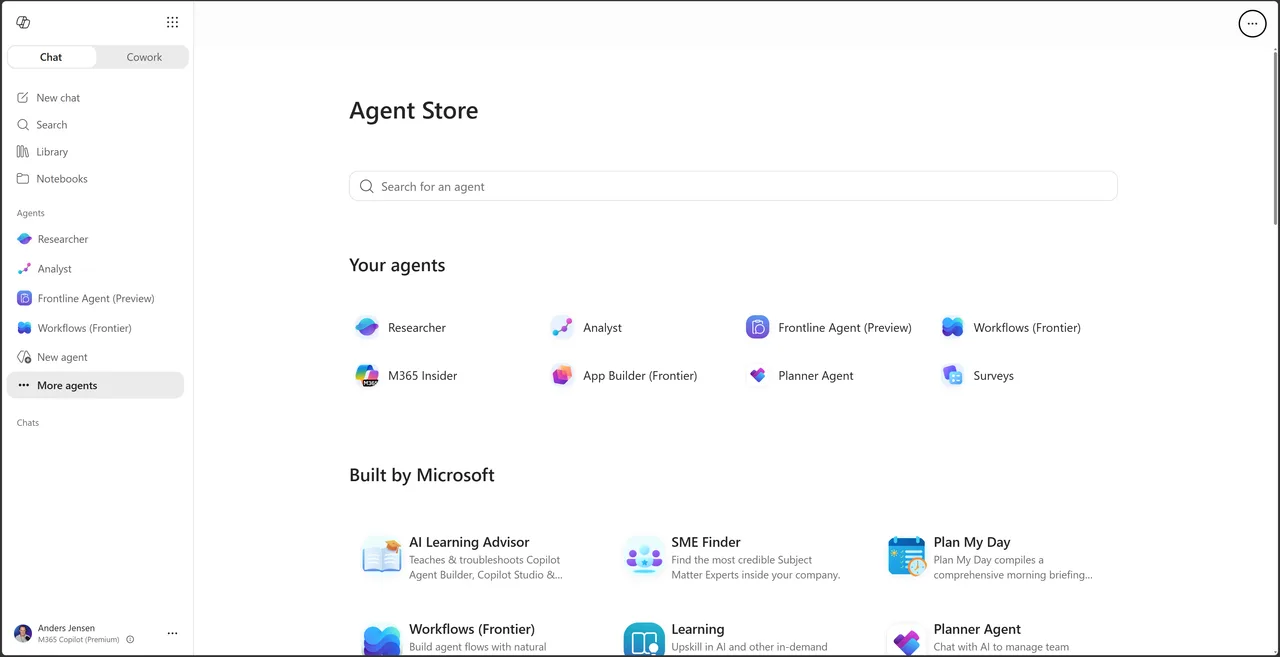
Check the other direction too: Sign in as a user outside a pilot group and confirm that the scoped agent does not appear for them.
Common pitfalls
- License-managed agents cannot be scoped here. Researcher and Analyst follow the license; their Users tab is informative, not editable.
- The padlocks are Agent 365, not errors. The standard experience covers the registry, blocking, scoping, rules, and default templates; the analytics and security cards plus custom templates require the paid add-on.
- The Sharing control covers less than it sounds like. It only applies to Agent Builder agents, not everything else in the registry.
- Deselected Microsoft agents don't disappear entirely. If you turn off the Microsoft type under Allowed agent types, users can still see the agents in the store; they just can't install them. Expect questions.
- Preview flux. Frontier badges, Agent 365 branding, and tab names have changed several times over the past year. The screenshots here are from July 2026; the details may look different by the time you read this.
Our recommendation: Registry first, the switch last
The on/off switch is still the bluntest tool in the box, and after this walkthrough it is clear why: Everything in between now exists. Our recommendation is to work from the bottom up. Start in the registry and get an overview of what is actually sitting in the tenant. Leave the Microsoft agents available, approve external agents one by one, and scope new agents to a pilot group before rolling them out broadly. Block as the exception, and always write a reason in the reason field, so the decision can be revisited on facts instead of memory. And put a quarterly review in the calendar: With two Frontier tabs and an Agent 365 launch inside a single year, this is not an area you configure once and forget.
You can find Microsoft's official documentation here: Agent settings in Microsoft 365 admin center.
If the task feels bigger than the tools, you are in good company: Agent governance has become a growing part of our consulting, both when agents need to get safely into production and when the organisation needs more out of its AI tools.